Adding a ProductLift to Wix
How to get there: Click Widgets in the sidebar (under Share) → create a widget → copy the embed code to paste into Wix.
Adding a ProductLift page to your Wix website can be done swiftly and easily by following these steps. This guide will walk you through the process of embedding a ProductLift widget into your Wix site, allowing you to enhance your site with feature prioritization and product update capabilities.
Step-by-Step Guide
Step 1: Create a ProductLift Widget
-
Navigate to the Desired Page: Go to the page within ProductLift that you want to embed on your Wix site.
-
Create the Embed Widget:
-
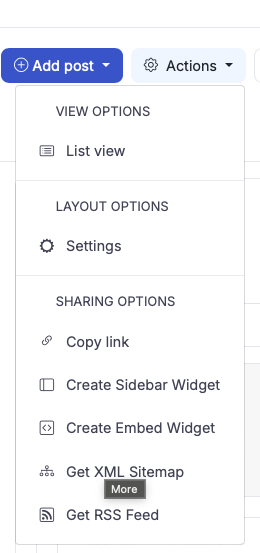
Click on the Actions button.
-
Select Create Embed Widget from the dropdown menu.
-
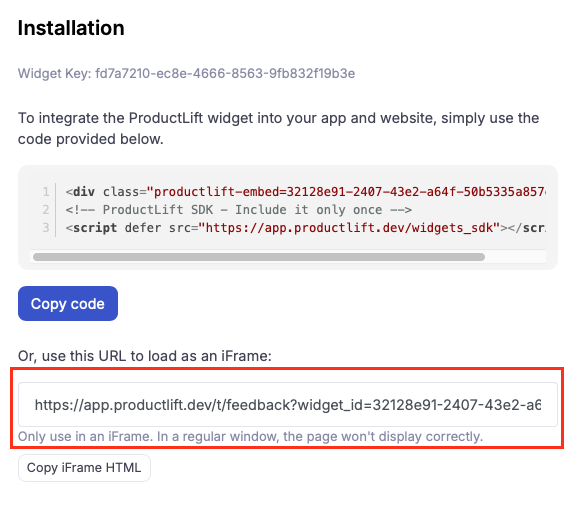
This will generate a widget and provide you with a website address (URL) that you will use in Wix.
Copy this URL:
Step 2: Access Your Wix Website
-
Go to Your Homepage: Open your Wix website and navigate to your homepage.
-
Enter the Editor:
- If you are not already in the Wix Editor, click on Design Site to enter the editor mode.

Step 3: Embed the ProductLift Widget
-
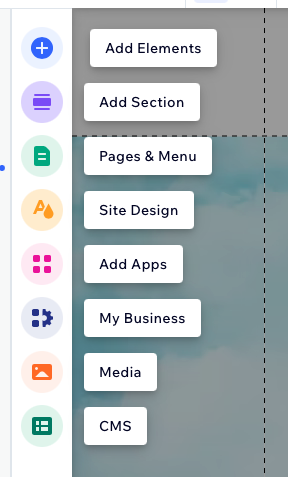
Open the Add Elements Menu:
- In the left-hand menu of the Wix Editor, click on Add Elements.
-
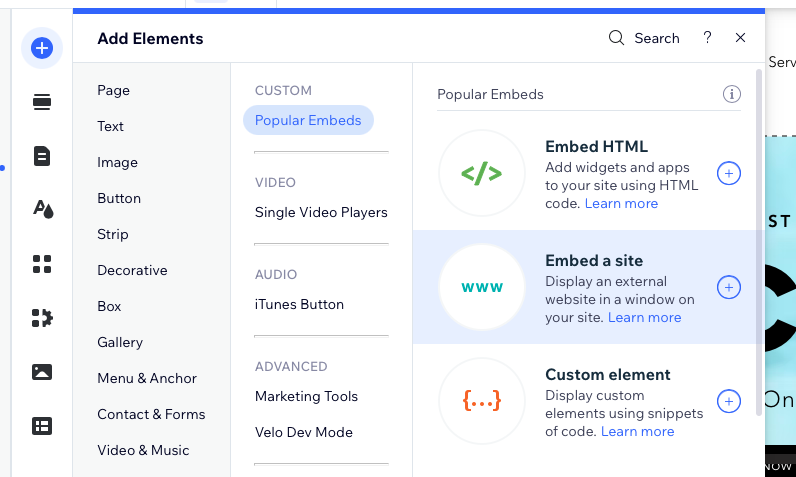
Choose to Embed a Site:
- Select the option to Embed a Site.
- Enter the Widget URL:
-
Paste the website address you obtained from the ProductLift widget creation.
-
The ProductLift page will now be embedded into your Wix site.
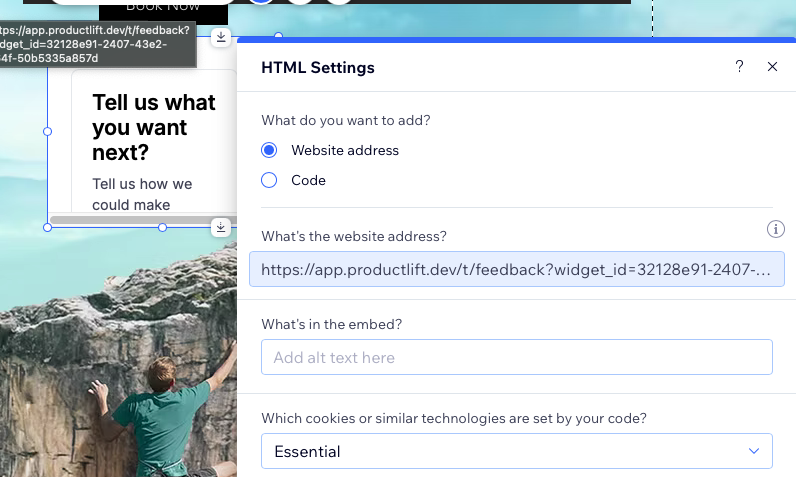
Step 4: Customize the Widget Placement
- Drag and Drop:
- Click and drag the embedded ProductLift page to your desired location on the site.
- Resize the Widget:
- Adjust the size of the widget to ensure it fits well with the overall design of your website.
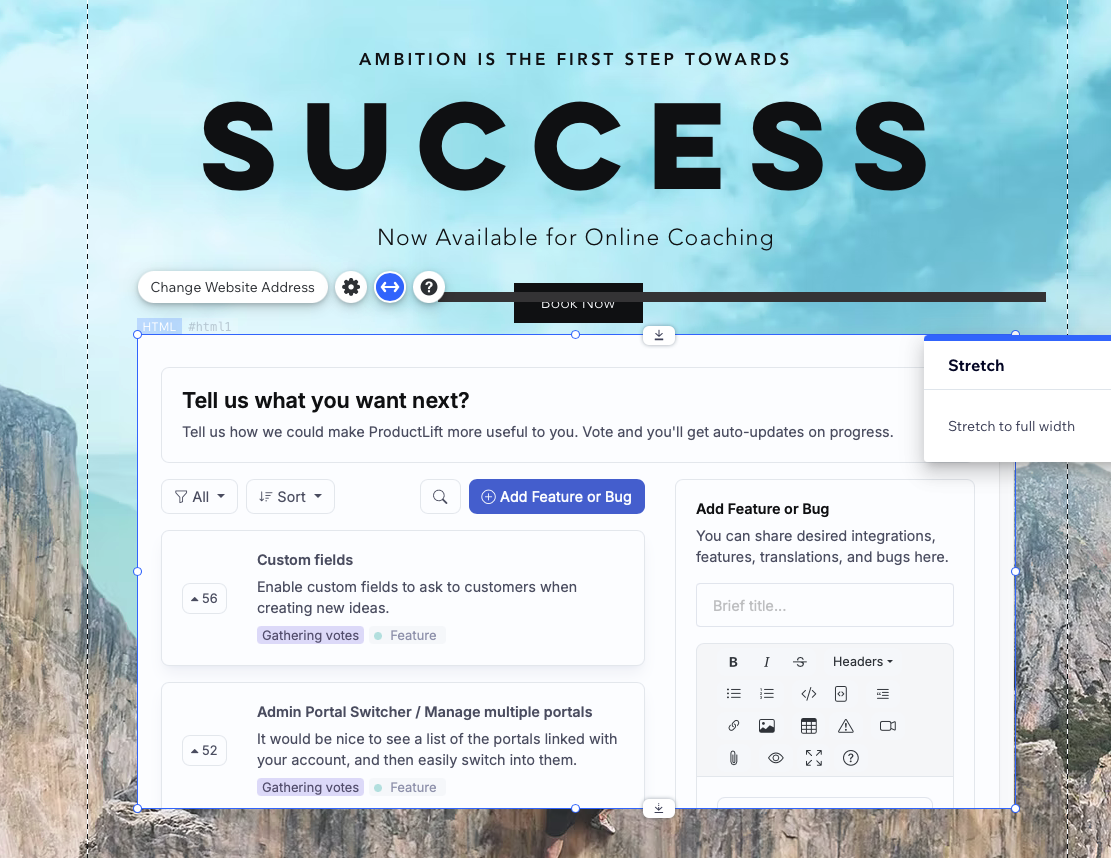
Tips for a Seamless Integration
-
Ensure Consistency: Make sure the styling of the ProductLift widget matches your site's theme for a cohesive look.
-
Test the Integration: After embedding, preview your site to ensure that the ProductLift page functions correctly and appears as expected.
-
Regular Updates: Keep your ProductLift page updated with the latest product features and roadmaps to provide value to your visitors.
By following these steps, you can effectively integrate a ProductLift page into your Wix website, providing your audience with valuable insights into your product's features and updates. This integration will help streamline your feature prioritization and roadmap communication efforts, aligning with the productivity goals of product managers and strategists.