Run bulk post operations
How to get there: Click All posts (via a board’s breadcrumb or the sidebar shortcut, when available) → select multiple posts using checkboxes → the bulk action bar appears at the top.
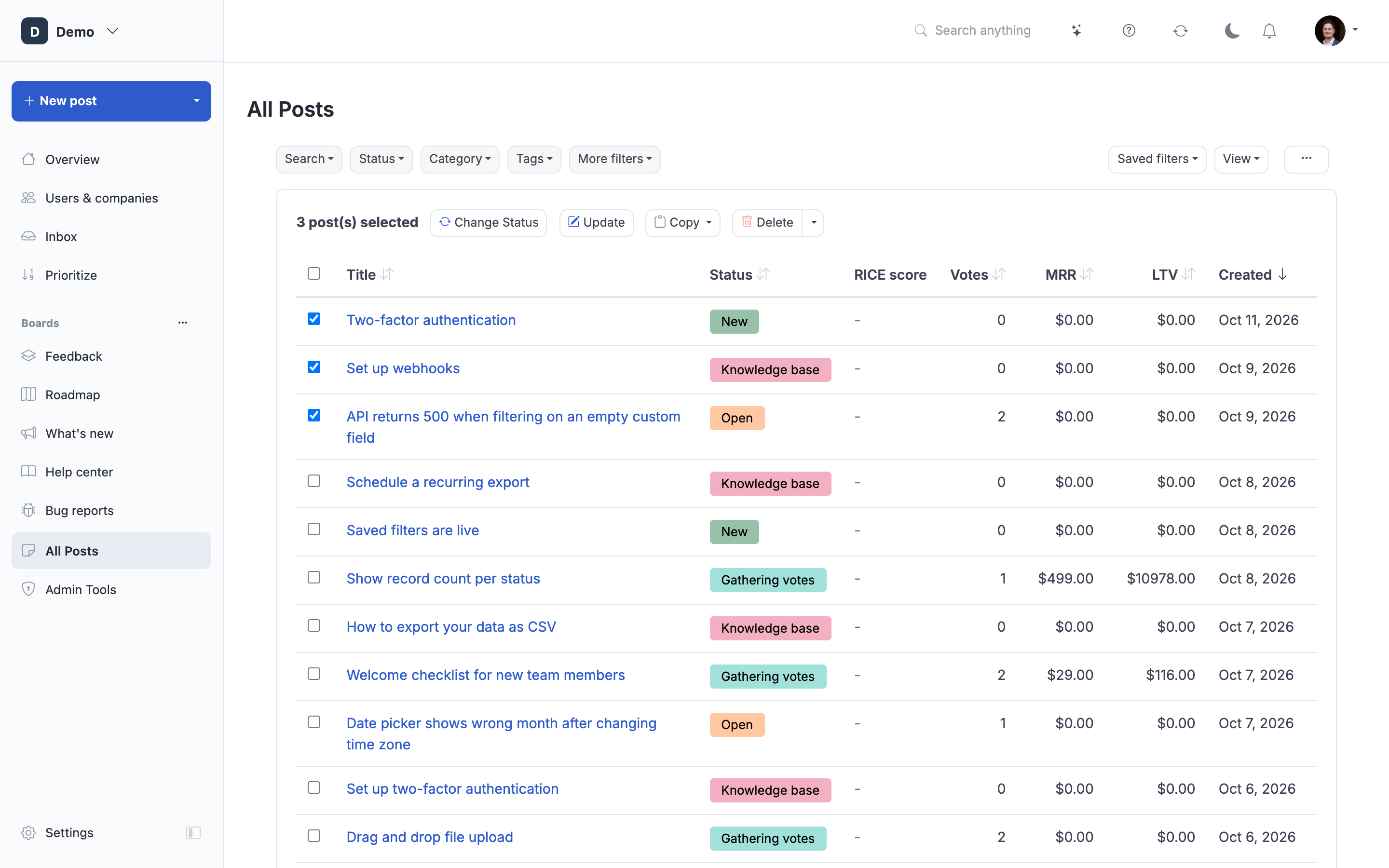
Learn how to efficiently manage multiple posts simultaneously using ProductLift's bulk operations, saving time when organizing large volumes of customer feedback.
What are Bulk Post Operations?
Bulk operations allow you to perform actions on multiple posts at once, rather than editing each post individually. This is essential for managing high volumes of feedback efficiently, whether you're organizing posts, updating statuses, or assigning categories.
Common bulk operations include changing statuses, assigning categories and tags, setting assignees, and bulk deletion. The Bulk Update modal also lets you set the assignee, author, post type, section, publish state (published/draft/internal/allow comments), scheduled publish date, MoSCoW priority, priority, severity, and estimated date across many posts in one click. Every field uses a three-mode radio (Don't change / Set / Clear) so you never touch attributes you didn't mean to.
When to Use Bulk Operations
Use bulk operations for:
- Organizing newly moderated posts (assign categories to 10+ posts)
- Sprint planning (move multiple posts to "In Progress")
- Release management (mark multiple features as "Released")
- Quarterly cleanup (archive old posts)
- Category reorganization (reassign posts to new categories)
- Team coordination (bulk assign posts to team members)
Time savings example:
- Individual: 20 posts × 1 minute each = 20 minutes
- Bulk operation: 20 posts at once = 2 minutes
- Savings: 90% faster
Accessing Bulk Operations
Select Multiple Posts
Method 1: Checkbox Selection
- Navigate to Feedback Board or any board
- Check boxes next to posts you want to modify
- Select 2-100+ posts
- "Bulk Actions" button appears
[Screenshot: Feedback board with checkboxes next to posts, 12 posts selected, "Bulk Actions" button highlighted]
Method 2: Select All
- Click "Select All" checkbox in header
- Selects all posts on current page
- Useful for page-wide operations
Method 3: Filter Then Select
- Apply filters first (category, status, tag)
- Select all filtered results
- Bulk operation applies only to filtered subset
[Screenshot: Filtered board showing Category="Mobile", 23 results, all selected]
Open Bulk Actions Menu
Once posts are selected:
- Click "Bulk Actions" button
- Dropdown menu appears showing available operations
- Choose operation to perform
[Screenshot: Bulk actions dropdown menu showing options: Change Status, Assign Category, Add Tags, Assign To, Delete]
Bulk Status Changes
Change Status for Multiple Posts
Use case: Moving features from "Under Review" to "Planned" after prioritization session.
Steps:
- Select posts to update (checkboxes)
- Click Bulk Actions → "Change Status"
- Select new status from dropdown
- Optionally add comment (appears on all posts)
- Check "Notify followers" to send update emails
- Click "Apply"
[Screenshot: Bulk status change dialog showing status dropdown set to "Planned", comment field, "Notify followers" checkbox, and count "12 posts will be updated"]
Confirmation:
- Shows number of posts affected
- Preview of status change
- Confirms notification will be sent
- "Are you sure?" confirmation for safety
What Happens:
- All selected posts update to new status simultaneously
- Posts move to boards assigned to that status
- Followers receive notification email (if checked)
- Activity logged for each post
- Status change comment appears on each post
Example Notification Email:
12 features you voted for have been updated to Planned
We're adding these features to our roadmap! [View Roadmap →]
Bulk Status Change Best Practices
Group Similar Posts:
- Change status for related features together
- Add context in comment explaining decision
- Example: "Adding these mobile features to Q3 roadmap"
Communicate Clearly:
- Always add comment explaining status change
- Use notification checkbox strategically (don't overload users)
- Personalize comment for specific group
Safety Checks:
- Review selected posts before applying
- Confirm correct status selected
- Check notification setting
Bulk Category Assignment
Assign Category to Multiple Posts
Use case: Newly moderated posts need categories assigned.
Steps:
- Select uncategorized posts
- Click Bulk Actions → "Assign Category"
- Choose category from dropdown
- Click "Apply"
[Screenshot: Bulk category assignment showing category dropdown with "Mobile App" selected, 8 posts selected]
What Happens:
- All selected posts assigned to chosen category
- Posts now filterable by that category
- Category badge appears on each post
- Previous category (if any) replaced
Bulk Categorization Strategy:
Filter First:
- Use keywords to find related posts
- Example: Search "dark mode" → Select all → Assign "UI/UX" category
Batch by Theme:
- Select posts about integrations → "Integrations" category
- Select posts about billing → "Billing" category
- More efficient than one-by-one
Bulk Tag Management
Add Tags to Multiple Posts
Use case: Tag enterprise customer requests for easy filtering.
Steps:
- Select posts from enterprise customers
- Click Bulk Actions → "Add Tags"
- Type tags (comma-separated): "enterprise, high-priority, security"
- Click "Apply"
[Screenshot: Bulk tag dialog showing tag input with "enterprise, high-priority" entered, 15 posts selected]
What Happens:
- Tags added to all selected posts (existing tags preserved)
- Posts now filterable by these tags
- Tag badges appear on posts
Remove Tags in Bulk:
- Select posts with unwanted tag
- Click Bulk Actions → "Remove Tags"
- Select tags to remove
- Click "Apply"
Replace Tags:
- Bulk remove old tag
- Bulk add new tag
- Useful for tag refactoring
Tag Management Tips:
- Use consistent tag naming conventions
- Document tag meanings for team
- Review and consolidate tags quarterly
- Bulk retag when conventions change
Bulk Assignment to Team Members
Assign Posts to Team Member
Use case: Distribute work among product team.
Steps:
- Select posts for specific team member
- Click Bulk Actions → "Assign To"
- Choose team member from dropdown
- Click "Apply"
[Screenshot: Bulk assign dialog showing team member dropdown with "Sarah (Product Manager)" selected, 6 posts selected]
What Happens:
- Team member becomes owner of posts
- Posts appear in their "Assigned to Me" view
- Team member receives notification
- Assignee avatar appears on posts
Assignment Strategies:
By Expertise:
- Mobile posts → Mobile developer
- Billing posts → Finance team member
- Design posts → Designer
By Workload:
- Distribute evenly across team
- Monitor assigned post count per person
- Rebalance as needed
Unassign in Bulk:
- Select assigned posts
- Bulk Actions → "Unassign"
- Removes assignee from all selected posts
Bulk Deletion
Delete Multiple Posts
Use case: Remove spam, duplicates, or irrelevant old posts.
Steps:
- Select posts to delete
- Click Bulk Actions → "Delete"
- Confirm deletion
- Click "Confirm Delete"
[Screenshot: Bulk delete confirmation dialog showing the number of selected posts.]
Safety Features:
- Requires explicit confirmation
- Shows count of posts to be deleted
- No restore button in the portal; contact ProductLift support for recovery
- Admin-only operation
What Happens:
- Posts disappear from boards, search, exports, and the API
- Posts, votes, comments, and attachments are retained for internal recovery
- Deletion time and the acting user are recorded
When to Bulk Delete:
- Spam that passed moderation
- Test posts from setup
- Duplicate posts (merge instead when possible)
- Irrelevant old posts
Alternatives to Deletion:
Consider instead:
- Archive (move to "Archived" status)
- Reject (if already moderated)
- Merge duplicates (preserves votes/comments)
Advanced Bulk Operations
Bulk Operations with Filters
Powerful Combination:
- Apply filters to narrow posts
- Select all filtered results
- Bulk operation applies only to subset
Example Workflow:
Goal: Mark all enterprise SSO requests as high priority
- Filter: Category="Security" + Tag="enterprise" + Search="SSO"
- Results: 8 posts matching criteria
- Select all 8 posts
- Bulk Actions → Add Tags → "high-priority"
- Applied to exactly the right posts
[Screenshot: Filtered results with multiple filters applied, showing 8 matched posts, all selected for bulk tagging]
Bulk Operations in Prioritization View
During Prioritization:
You can bulk update posts from prioritization views:
- Score posts with RICE/ICE
- Select top-scoring posts
- Bulk change status to "Planned"
- Instant roadmap update
Example:
- RICE prioritization identifies top 10 features
- Select all 10
- Bulk → Change Status → "Planned"
- All 10 added to roadmap simultaneously
Saved Queries + Bulk Operations
Create Repeatable Workflows:
- Create saved query: "Enterprise Requests from Last Month"
- Run query → 23 results
- Select all → Bulk assign to enterprise PM
- Repeat monthly for ongoing triage
Benefits:
- Consistent process
- Fast execution
- No manual filtering each time
Bulk Operation Best Practices
Verify Before Applying
Double-Check:
- Count of selected posts matches expectation
- Correct operation selected
- Appropriate new value chosen (status, category, tag)
- Notification setting is correct
Preview:
Some bulk operations show preview:
- "12 posts will change from 'Under Review' to 'Planned'"
- "Followers: 347 users will be notified"
- Review before confirming
Add Context with Comments
When Changing Status:
Always add comment explaining bulk status change:
Good Comments:
"Adding these features to Q3 roadmap based on RICE prioritization and enterprise customer feedback."
"Marking as Released - these features shipped in v2.4. See changelog for details."
Bad Comments:
"Updated" (no context)
Blank comment (no explanation)
Use Notifications Strategically
Notify Followers:
Consider:
- Do notify: Important status changes (Planned, Released)
- Don't notify: Internal status changes (In Review → Under Review)
- Batch notifications: Change multiple related posts at once to reduce email volume
Notification Fatigue:
Avoid:
- Too many bulk status changes in short period
- Notifying for minor status changes
- Bulk updating unrelated posts together
Safety for Destructive Operations
Bulk Delete:
- Never rush
- Verify selected posts
- Consider archive instead
- Bulk delete spam only
Bulk Status Changes:
- Some statuses are harder to reverse ("Won't Build")
- Think before bulk rejecting features
- Consider impact on customer morale
Limitations and Considerations
Bulk Operation Limits
Performance Limits:
- Recommended: 100 posts per bulk operation
- Maximum: 500 posts (system limit)
- Larger operations: Split into batches
Timeout Protection:
- Very large operations (500+ posts) may time out
- Solution: Filter to reduce count, operate in batches
Permissions Required
Admin/Member Only:
Bulk operations require elevated permissions:
- Admins: All bulk operations
- Members: Most bulk operations
- Users: No bulk operations
Operations That Cannot Be Bulk
Individual Only:
Some operations remain one-at-a-time:
- Merging posts (requires selecting target post)
- Splitting posts (requires defining new posts)
- Editing post content (unique to each post)
Troubleshooting
Issue: Bulk Action Button Not Appearing
Solution:
- Ensure posts are selected (checkboxes checked)
- Verify you have admin/member permissions
- Refresh page if button doesn't appear
Issue: Bulk Operation Failed
Solution:
- Too many posts selected (reduce to <100)
- Network timeout (try smaller batch)
- Permissions issue (verify your role)
Issue: Wrong Posts Updated
Solution:
- Operations cannot be undone (status changes can be reversed manually)
- Be more careful with verification
- Use filters to narrow selection before bulk operation
Issue: Followers Not Notified
Solution:
- Verify "Notify followers" checkbox was checked
- Check email settings (Settings → Notifications & email → Email setup)
- Verify followers have notification preferences enabled
Use Case Examples
Example 1: Quarterly Roadmap Planning
Scenario: Quarterly planning session, need to add 15 features to roadmap.
Workflow:
- Run RICE prioritization
- Identify top 15 features
- Select all 15 posts
- Bulk Actions → Change Status → "Planned"
- Add comment: "Added to Q3 2026 roadmap based on RICE scoring and strategic priorities"
- Check "Notify followers"
- Apply
Result: 15 features added to roadmap in 2 minutes, 847 followers notified.
Example 2: Release Day
Scenario: Shipping 8 features in version 2.5 release.
Workflow:
- Filter: Status="Ready to Ship"
- Select all 8 posts
- Bulk Actions → Change Status → "Released"
- Add comment: "Shipped in v2.5! Check out the changelog for details."
- Check "Notify followers"
- Apply
- Posts move to Changelog automatically
Result: Release communication sent to 423 voters, roadmap updated.
Example 3: Post-Moderation Organization
Scenario: 30 newly approved posts need categories.
Workflow:
- Filter: Status="New" (just approved)
- Group by theme:
- Select 12 integration posts → Assign "Integrations" category
- Select 8 mobile posts → Assign "Mobile App" category
- Select 10 UI posts → Assign "UI/UX" category
- Three bulk operations, all posts categorized
Result: 30 posts organized in 5 minutes vs. 30 minutes individually.
Related Articles
Post Management:
- Post Moderation - Bulk approve/reject during moderation
- Merging Posts - Combine duplicates
- Splitting Posts - Separate multi-idea posts
Workflow:
- Content Moderation Workflow - Bulk operations in moderation context
- Building and Sharing a Roadmap - Bulk status changes for roadmap
- Kanban Board Management - Visual bulk operations via drag-drop
Organization:
- Advanced Filtering and Search - Filter before bulk operations
- Saved Queries and Filters - Repeatable bulk workflows