Companies
How to get there: Go to Users & companies in the sidebar → click the Companies button in the top-right button bar.
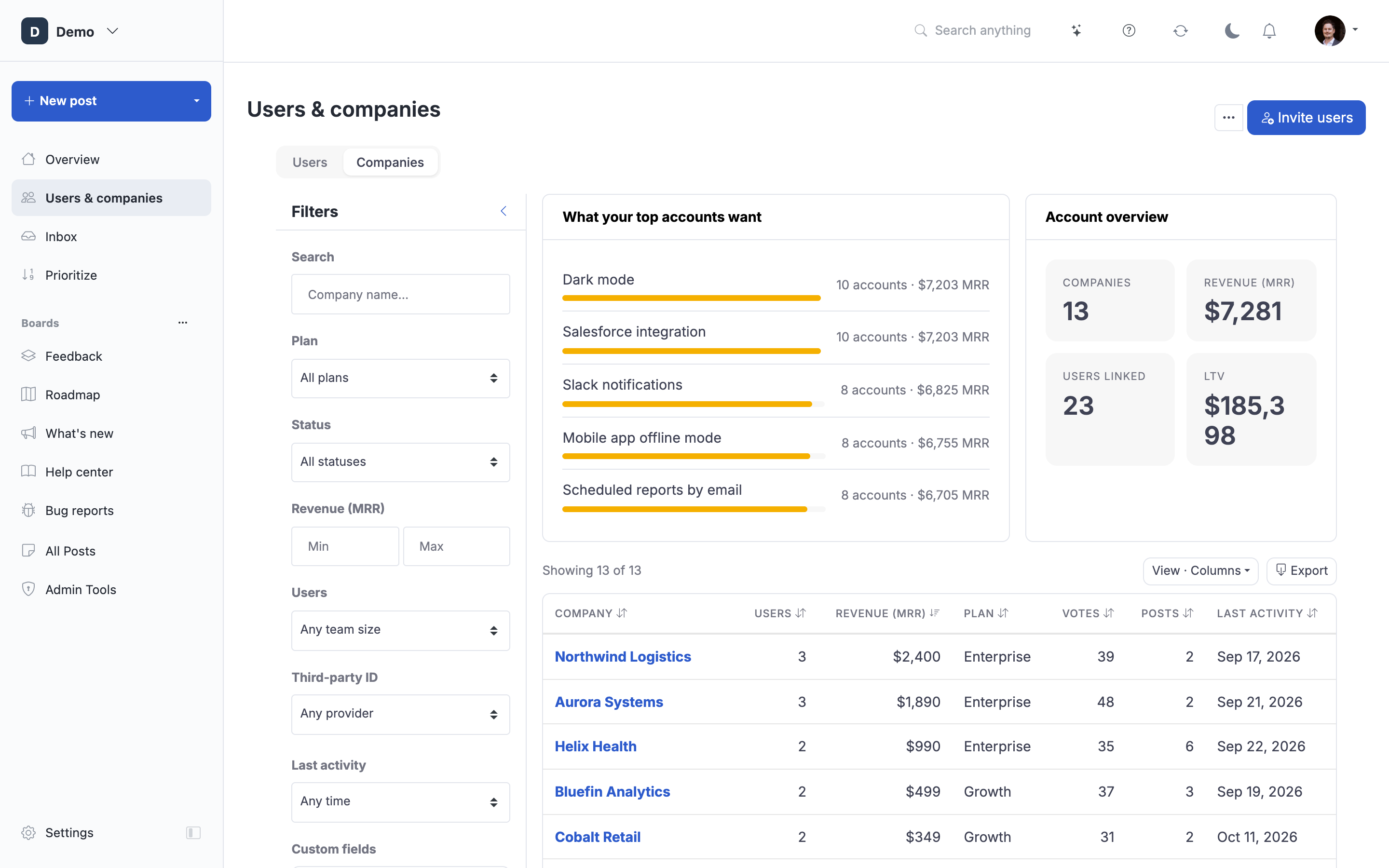
A company is the account your users belong to. Three people at Marrowvale University are three users and one company. Revenue, plan and customer status live on the company, so a feature request voted by all three counts Marrowvale once.
Where do companies come from?
A company is created the first time something references it, and users are linked to it:
- The HubSpot integration (the contact's company, matched by HubSpot company id, domain, then name)
- The Stripe integration (people who share one Stripe customer are one company; Stripe fills the company's MRR, LTV, plan and status)
- SSO and the widget (a
companyname or acompaniesobject in the login payload) - The API (
customer_company_name,company_keyorcompanieson a user)- A plain company name sent with the older per-user revenue fields (
customer_mrr,customer_ltv, plan, status, customer-since) fills in what the company does not know yet. It never overwrites a value the company already has, so a Stripe sync or an edit in ProductLift always wins. - A company reference with an external ID that matches an existing company by name or domain attaches that ID when the company has none. If the company already carries a different external ID the request is rejected, so two systems can never claim the same company by accident.
- A plain company name sent with the older per-user revenue fields (
- CSV import (a
companycolumn) - Editing the Company field on a user's profile
- Automatically, by email domain: when a company has a domain such as
marrowvale.edu, a new user with a@marrowvale.eduaddress is linked to it. This never happens for free-mail domains like gmail.com, and it never replaces a company you assigned yourself.
Who decided the link matters when sources disagree. A company you set yourself (on the profile, by API, CSV or SSO) always stays. A link made by the Stripe or HubSpot sync, or guessed from the email domain, follows the integration: when HubSpot moves a contact to another company, the user moves along. The user profile shows "(synced)" or "(from email domain)" next to the company in those cases.
Stripe and revenue: the first Stripe customer synced for a company becomes its billing customer (shown as the Stripe ID on the company page). Only that customer sets the company's MRR, LTV, plan and status. Other people at the company with their own Stripe customer keep those values on their profile only. To switch the billing customer, edit the Stripe ID on the company page.
Names are matched case-insensitively ("Acme Inc" and "acme inc" are the same company). Users without a company are not shown here; they still appear on the Users page and count as their own account in revenue totals.
What you can do
- Sort by account MRR, LTV, seats or last activity to find your heaviest accounts
- Search to jump to a specific company
- Click a company to open its page with:
- Account MRR, LTV, votes, posts and comments
- The company's name, domain, MRR, LTV, plan, status, customer-since date, country and external ID, editable in place
- Everyone at the company, and a link to the Users page filtered on it
- The top posts people at this company voted on, with how many of them voted
You can also open a company from a user's profile or from the Company column on the Users page.
Editing a company
Open the company page and click the pencil next to a field. Changes apply to the company itself, not to individual users. A few things to know:
- Renaming to a name another company already has is not allowed. Merge the two companies instead.
- Domain can hold several domains, comma-separated. New users with an email on one of them are linked automatically.
- MRR and LTV left empty mean "unknown". Unknown revenue is left out of totals, it is not counted as zero.
- Values that come from Stripe are overwritten again on the next Stripe sync. HubSpot only fills in values that are still unknown.
- Third-party IDs (HubSpot, Stripe, Salesforce, Intercom, Pipedrive, Zendesk) sit below the External ID. Click Add ID to attach one. Imports and the API use these IDs to find the company, and when you connect that integration later it picks the IDs up as they are. The small icon next to each ID tells you where it came from: the refresh icon means the integration synced it, the keyboard icon means a person, a CSV or the API entered it and no integration has confirmed it yet.
Filter the Users page by company
On the Users & companies page (Users view), the Company filter in the left sidebar matches part of a company name. In the Companies view, the Third-party ID filter finds companies by their HubSpot, Stripe, Salesforce, Intercom, Pipedrive or Zendesk ID, or those without one, and the View · Columns menu can show those IDs as columns. The Users at this company button on a company page opens the Users page filtered on exactly that company.
How revenue is counted
Every post shows the revenue represented by its voters. The rule is simple: each company counts once, at its own MRR, however many of its people voted. A user without a company counts as their own account. Unknown revenue is skipped.
So a post voted by three people at Acme Corp ($1,299/mo) and one person at Stark Industries ($499/mo) shows $1,798, and "2 companies". Sort or filter posts by that number to see what your top-paying accounts actually want.
The What your top accounts want and What your top users want panels above the list only count posts that are still open for a decision. "Open" means the statuses you picked under Prioritization settings, or, if you never picked any, every status on a list-type board. Work that already moved to a changelog board does not show up as demand any more. Change the selection in Prioritization settings and the panels update on the next load.
Merging two companies
When the same account exists twice (say "Acme" from HubSpot and "Acme Inc." from a CSV), open the duplicate, click ··· → Merge into…, pick the company to keep and confirm. Everyone at the duplicate, its domains and its integration links move over. Where both companies already have a value, the one you keep wins; empty fields are filled from the duplicate. The duplicate is archived and remembers which company it was merged into, so an integration that still sends its identifier lands on the right company.
Archiving
··· → Archive company hides a company from lists and filters. Its users stay linked and keep the company's revenue, plan and status, so their votes still count correctly. Restore company brings it back, and so does an integration or import that references the company again. A merged company cannot be restored; open the company it was merged into instead.
Companies in the API
GET /api/v1/companies, POST /api/v1/companies, PATCH /api/v1/companies/{id}, DELETE /api/v1/companies/{id} (archives) and POST /api/v1/companies/{id}/merge are documented in the API reference. The same operations are available to AI assistants through the MCP server as companies.list, companies.get, companies.create, companies.update, companies.delete and companies.merge. Revenue values in the API are always monthly; portal.get tells you whether the portal displays MRR or ARR.
 Powered by ProductLift