Set up single sign-on (SSO)
How to get there: Go to Settings in the sidebar → Authentication tab → scroll to Single Sign-On (SSO).
When you receive feedback, you should know who gave it (free user, paid user, or enterprise customer). But more importantly, you want to inform them what you do with their feedback.
For this, we need to gather their email address to contact them, and it would be logical if users could log in again when they have additional feedback or questions.
For this reason, ProductLift has user accounts, and people can sign up for a new account and leave feedback.
When you want users to avoid creating a new account (people may forget passwords), you have several options:
- Sign in via social media account. This is ready out of the box for Twitter, Facebook, Github, and Google.
- Sign in via Microsoft 365 / Entra ID for true company SSO with your existing work accounts.
- Sign in via the Javascript SDK (aka single sign-on).
- Sign in via your server using the account that they already have (also single sign-on).
In this article, we are going to set up #3 and #4. For Microsoft 365 SSO, see its dedicated guide.
Choose your SSO verification level
ProductLift supports two integration methods:
| Method | Identity verification | When to use it |
|---|---|---|
JavaScript SDK (ProductLiftIdentify) |
Accepts the email, UID and name supplied by the browser. No server signature is required. | A simple integration where you accept that visitors can submit another user's identity. |
| Server-signed JWT | Your backend authenticates the user and signs a JWT using your portal's SSO secret. | Private portals, restricted content, or any integration that must prevent user impersonation. |
By default, both methods remain available for compatibility with existing integrations. Merely switching your application to server-signed JWTs does not disable SDK identification. SDK identification can let someone act as another member, including viewing content available to that member and posting or voting as them.
Turn SSO on or off
Use Allow members to sign in through your app in the Single Sign-On (SSO) section, then save. Turning it off blocks SDK identification, JWT sign-in and SSO access to embedded widgets. It also hides your app's button from the ProductLift login page. Existing login sessions stay active; email/password, social login and Microsoft 365 remain separate settings.
SSO is on by default to preserve existing integrations. Turning it off hides the configuration fields but keeps your verification choice, login URL, button text and secret so you can enable it again later. Still-valid tokens can work again after re-enabling SSO. Rotate the secret if you also want to invalidate previously issued tokens permanently.
The SSO secret is masked by default. Use Show to reveal it or Copy to copy it without revealing it. Regenerate Secret creates a new key and invalidates tokens signed with the previous key; update your server or WordPress plugin afterwards.
Require server-signed JWTs
- Configure your backend to authenticate the current user and generate an HS256 JWT with your portal's SSO secret. Keep this secret on your server, never in browser code.
- Go to Settings → Authentication → Single Sign-On (SSO).
- Under Identity verification, select Verified (server-signed JWTs) and click Save in that section.
- Pass your server-generated token through
?sso=TOKENon portal links, iframe URLs, or the SDK script URL shown below. PlainProductLiftIdentify({ email, uid, name })calls will no longer authenticate users.
When enabled, POST /api/generate-sso-token returns 403 with code: "signed_sso_required". New SDK tokens carry a signed productlift_sso_source: "sdk" marker and are rejected by both portal login and widget token validation, including tokens cached before the setting was enabled. Do not set that reserved marker in your own server-signed tokens.
Older tokens and immediate invalidation: SDK tokens issued before this feature do not carry the marker. They were signed with the same secret as server-generated tokens, so their origin cannot be distinguished. They can remain valid for up to one hour after issuance. For immediate invalidation, first enable and save the setting, then use Regenerate Secret and update your backend with the new secret. This invalidates all tokens signed with the old secret, including your own server-generated tokens. Generate fresh tokens after updating your backend. Saving the verification setting itself does not rotate the secret or end existing login sessions.
This setting controls SSO verification independently of Show “Log in with your app” on the ProductLift login page, which configures the optional login redirect. It does not disable email/password, social login, or Microsoft 365 login. If members should only use JWT SSO, configure those other login methods separately. Portal admins cannot sign in through either SDK identification or JWT SSO; keep their normal administrator login available.
Turning the setting off restores SDK identification and permits still-valid SDK tokens again.
Add a button to the ProductLift login page
In Settings → Authentication → Single Sign-On (SSO), find Login page button. Turn on Show “Log in with your app” on the ProductLift login page, enter Your app's login URL and Button text, then save.
When visitors click the button, they go to your app to authenticate. Your integration then returns them to ProductLift with a signed token. This button is optional: leave it off if users already arrive signed in through links or embedded widgets. It does not enable or disable token-based sign-in, and it does not change your identity verification choice.
How single sign-on works in ProductLift
- You generate a token on your server and sign it
- You send the user to ProducLift using the token
- The user is automatically logged into ProductLift using the account details you provided
- (Admins are not automatically logged in due to security reasons)
JWT Tokens
We use a secure protocol called JSON Web Token (JWT) to enable SSO to transfer user authentication data from your system to ProductLift. JWT is open, simple, and with solid community support. You can read more about it on the IETF website, and you'll be able to find a large number of open-source implementations for most languages.
Single sign-on with Javascript SDK
The simplest sign-on is using our JavaScript SDK. This method requires Standard (JavaScript SDK) to be selected and does not verify who owns the supplied identity.
You should load the SDK in your app.
Then add the identify script, like below.
<script>
    window.PQ=window.PQ||[];window.ProductLiftIdentify=window.ProductLiftIdentify||function(u){PQ.push(u)};
    ProductLiftIdentify({
        email: 'john@example.com',
        uid: '123',
        name: 'John Doe',
                // Optional
        avatar_url: 'https://example.com/avatar.jpg',
        // sync_profile: true, // Optional: overwrite an existing member's name and supplied avatar
        company: 'ACME Corp',
        mrr: '99.99',
        // Optional segment fields:
        segment_1: 'developer',
        segment_2: 'premium',
        segment_3: 'early_adopter',
        // ... up to segment_10
        arr: '1199.88',
        ltv: '3599.64',
        group: ['beta-testers', 'enterprise'],
        language: 'fr'  // Optional, sets the user's preferred portal language
    });
</script>
The ProductLiftIdentify function accepts an object with user data. You should include the required fields (email, uid, name) and any optional fields that are relevant to your use case. See below the list.
With SSO arranged, you can add data-productlift-link to enable auto login for an URL.
<a href="https://feedback.yourdomain.com" data-productlift-link>See our roadmap</a>You can also use this in iFrames, for example.
<iframe src="https://app.productlift.dev/t/wish-list?widget_id=a4351156-d05a-4989-8c72-bf6cf88a99ae" data-productlift-link width="100%" height="600px" frameborder="0"></iframe>In case you cannot add elements to these HTML codes (some website builders block it), you can add "data-productlift-link" as a class.
Server side single sign-on
Step 1: Get your SSO secret
You should create a JWT token on your end using the SSO secret that we provide.
You can find your SSO secret at Settings → Authentication → Single Sign-On (SSO).
Step 2: Generate a token
Generate a JWT SSO token on your end and sign it with your SSO secret. You can find several examples of creating a token on the IETF website.
The contents should look something like this:
$payload = [
    'email' => 'john@me.com',
    'uid' => '123',
    'name' => 'John James',
    'iat' => time(),
    'exp' => time() + 300, // Expires after five minutes
    // 'avatar_url' => 'https://i.pravatar.cc/150?img=61',
    // 'sync_profile' => true, // Optional: overwrite the existing forum profile
    // 'segment_1' => 'developer',
    // 'company' => 'ABC',
    // 'mrr' => '10.99',
    // 'language' => 'fr',
];

$token = JWT::encode($payload, $private_key, 'HS256');
Explaining the fields in the payload:
Required data
- email: The user's email address, serving as a primary point of contact and identifier for login or communication purposes.
- uid (Unique ID): A distinct identifier assigned to the user within your product. It's crucial for tracking, managing user data, and distinguishing between users with similar names or attributes.
- name: The user's full or preferred name as it should appear within the application or communications. It's used for personalization and identification in the user interface and interactions.
Optional data
- avatar_url: URL of the user's avatar image. Set at account creation; preserved on later sign-ins unless
sync_profileistrue. - sync_profile: Optional boolean, defaults to
false. Set totrueto update an existing member's display name and, when supplied, avatar from this sign-in. Use a JSON boolean (trueorfalse); SDK requests with strings, numbers or null are rejected. Applies to both the JavaScript SDK and server-signed JWTs. - company: The name of the company (account) the user belongs to. ProductLift links the user to the existing company with that name, or creates it. Send an empty string to unlink.
- companies: Instead of a name, an array with one company object in the shape Canny and Featurebase use:
{ id, name, domain, monthlySpend, ltv, plan, status, created, customFields }.idis your own identifier for the account and is remembered, so a later rename lands on the same company.domainlets ProductLift link new colleagues automatically by their email domain.monthlySpendsets the company's MRR. Only the first entry is used. - segment_1 to segment_10: User-defined fields for categorizing users based on various criteria. These segments allow for flexible and customized user analysis.
- mrr (Monthly Recurring Revenue): The monthly income expected from the user or their company, indicating ongoing financial engagement.
- arr (Annual Recurring Revenue): The yearly income expected from the user or their company, providing a long-term revenue perspective.
- ltv (Lifetime Value): The total revenue a user is expected to generate over their entire relationship with your service or company, indicating overall value.
- group (Group Membership): The group or groups to assign the user to, allowing you to organize users for access control, beta testing, or customer segmentation. Accepts a single group name as a string or multiple group names as an array. Groups must already exist in your portal.
- language: A two- or five-character locale code that sets the user's preferred portal language (for example
en,nl,fr,de,es,pt,it,pl,zh,zh-tw,ja,ko,tr,ru). The value must match a locale enabled on your portal under Settings > General > Languages, otherwise it is ignored. This skips your user's "pick a language" step on the portal entirely.
Preserve members' forum profiles
SSO sets the display name and optional avatar when it creates an account. On later sign-ins, ProductLift preserves those values so members can choose a forum name for privacy. Linking SSO to an existing account by email also preserves its profile. You can keep sending name and avatar_url; no API lookup is needed. name remains required in every sign-in payload.
If your application should control the forum profile, send sync_profile: true on each SDK identification or 'sync_profile' => true in each server-signed JWT. The name is then updated, and the avatar is updated only when a non-null avatar_url is supplied. An omitted or null avatar does not clear the current avatar. SDK identification with sync_profile: true requests a fresh token instead of reusing the cached identity token. That token is not saved to the identity cache, so later identifications without the flag cannot inherit the synchronization request.
Other SSO fields, including email, company, revenue, segments, groups and language, keep their existing synchronization behavior. sync_profile only controls the display name and avatar.
Change for existing integrations: Previously, each SSO sign-in overwrote the name and any supplied avatar. Integrations that need that behavior must now explicitly send sync_profile: true.
Keep in mind
- ProductLift first matches the user by
uid. If no match exists, an existing account with the supplied email is reused only when it has no SSO UID yet. An email already linked to a different UID is rejected. Keep UIDs stable and unique. Your backend must verify the user identity before issuing a server-signed token. - Portal admin sign-in is blocked for both SDK-generated tokens and server-signed JWTs. Admins use their regular administrator login.
- JWT tokens are readable by anyone, so don't add secret data in the payload. Though, they can only be verified by people with your SSO secret.
- Our privacy statement is automatically agreed, so you need to mention ProductLift in your privacy statement.
Step 3: Applying the SSO token
When you have the token, you can apply it easily by adding ?sso=TOKEN to any url of your portal.
For example:
- https://feedback.productlift.dev/?sso=TOKEN
- https://feedback.productlift.dev/new?sso=TOKEN
- https://feedback.productlift.dev/t/roadmap?sso=TOKEN
It is possible to add the token to the ProductLift SDK. This way users can interact with the widgets without logging in.
<a href="#" data-productlift-sidebar="3b31866b-b281-437f-b3f5-928f9a8fab35">Open Widget</a>
<!-- ProductLift SDK - Include it only once -->
<script defer src="https://app.productlift.dev/widgets_sdk?sso=TOKEN"></script>
Viewing data
This data is currently visible to administrators on the user's profile page. Click on the user to view their profile.
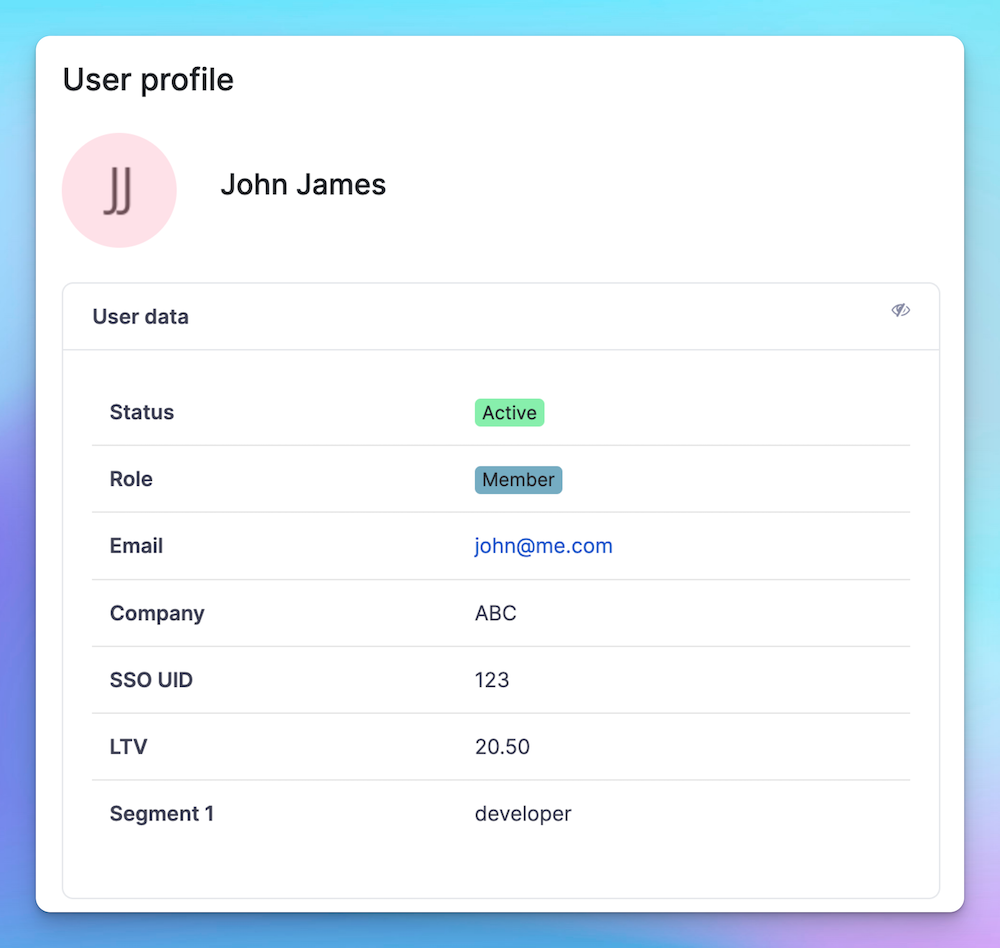
In upcoming updates, you'll gain the ability to filter posts and categorize 'likes' based on this data, enhancing user engagement insights and content targeting.
SSO inside an iframe (cookieless)
If you embed ProductLift inside another application via an iframe, browsers now block third-party cookies by default. That breaks the normal session-cookie flow: the user appears logged out inside the iframe even though they are logged in on your host page.
ProductLift supports a cookieless SSO flow for exactly this case:
- On every iframe load (or when the token is about to expire), your backend generates a fresh signed SSO token for the current user, the same way you do for a normal SSO handoff.
- Pass the token on the embed URL each time, for example
?sso={TOKEN}on the src of the iframe. - ProductLift validates the token per-request and treats it as authentication without needing a browser cookie. No third-party cookie is set, so browser privacy defaults do not block the flow.
Soft-deleted users: if a user was previously soft-deleted (e.g. removed and re-added on your side), the cookieless flow recreates the ProductLift user record automatically on the next signed request instead of erroring. You do not need to hard-delete or purge anything before re-onboarding a user.
Keep tokens short-lived (a few minutes is fine) and generate a new one for each iframe load rather than sharing one broadly.
 Powered by ProductLift