Use user profile features
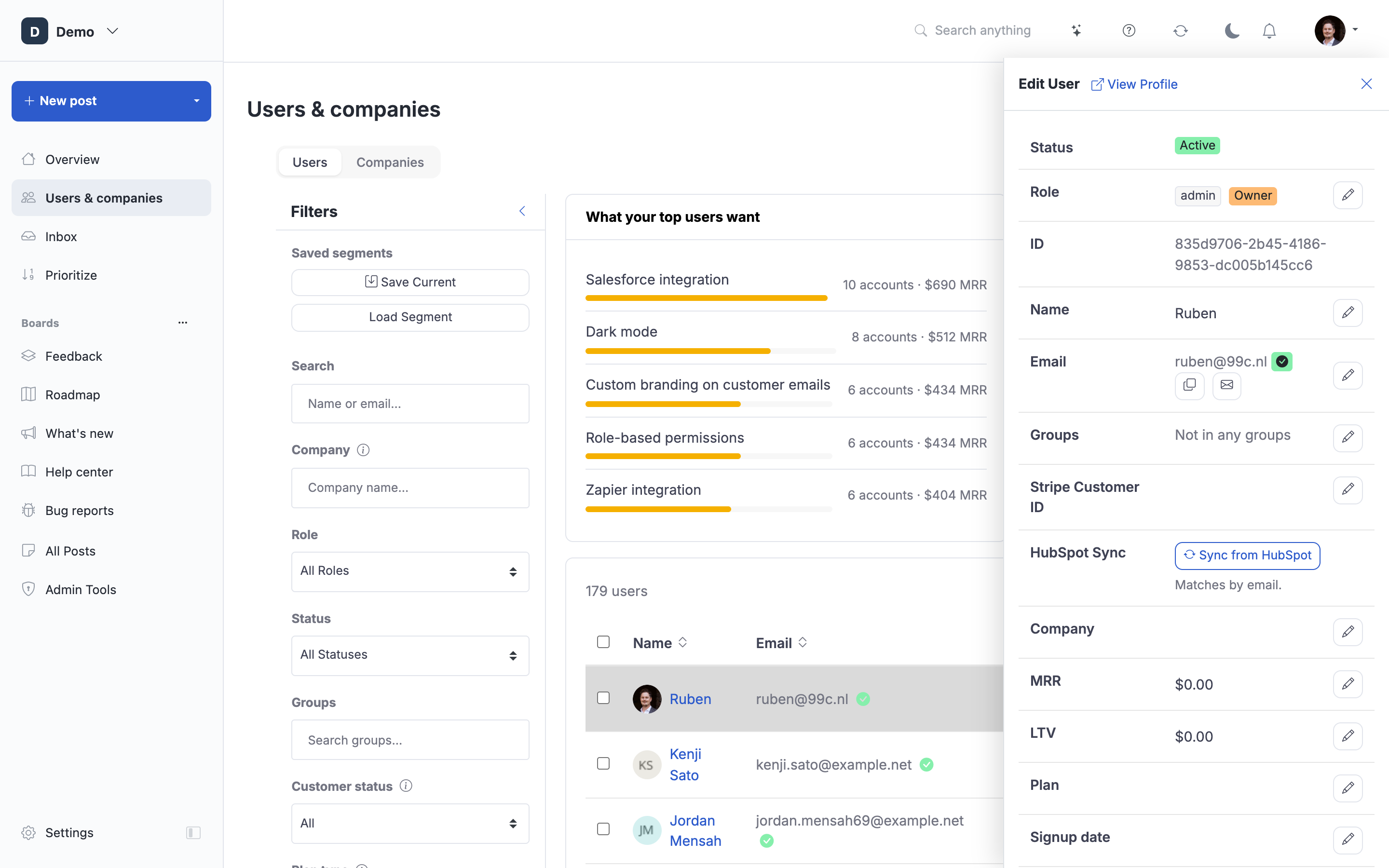
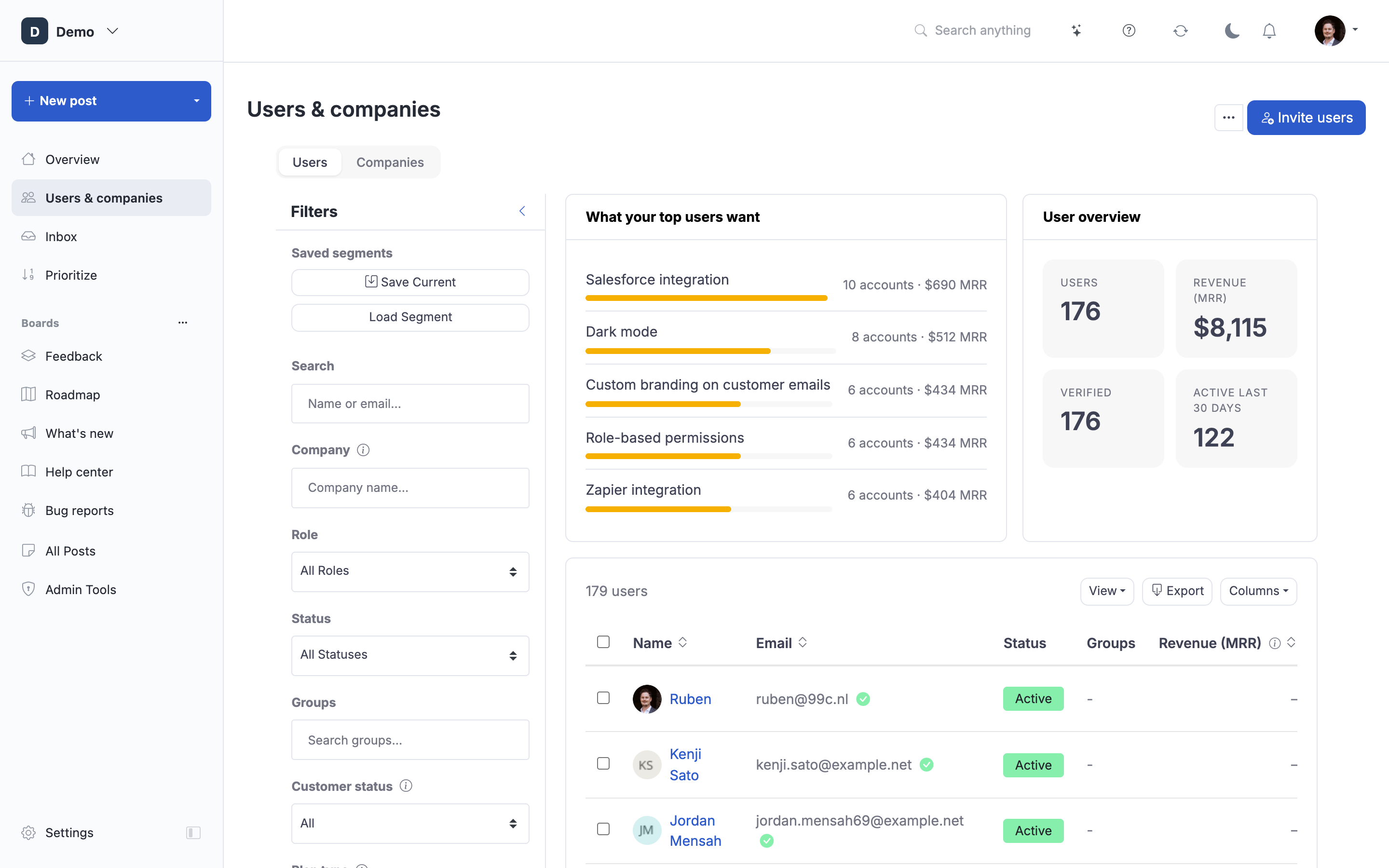
How to get there: Click Users & companies in the sidebar → select a user to view their profile. Users can also access their own profile from the portal.
Learn how to use your ProductLift user profile to manage assigned posts, track followed items, and organize your personal workflow efficiently.
What is the User Profile?
The User Profile page is your personal workspace in ProductLift where you can manage all posts assigned to you, track features you're following, and view your submission history. It provides a centralized location to organize your work and stay updated on relevant feedback.
The profile page is accessible to all logged-in users and serves different purposes based on your role: admins and team members use it to manage assigned work, while customers use it to track their submitted ideas and followed features.
Accessing Your Profile
Navigate to Profile:
- Click your avatar or username in the top navigation
- Select "My Profile" from dropdown menu
- Your profile page opens
Alternatively, open the profile menu from your avatar and click My profile. A profile URL has the form https://your-portal.productlift.dev/user/profile/{id}.
[Screenshot: Top navigation showing user avatar menu with "My Profile" option highlighted]
Profile Sections Overview
Your profile page focuses on the posts you personally interact with:
Main Sections:
- Following Posts - Posts you're tracking for updates
- Created Posts - Posts you've submitted
- Activity (admins only, on other people's profiles) - 90-day sparkline showing posts + comments + votes so admins can gauge engagement at a glance
Admins have one additional page for work-queue management:
- Assigned Posts - opens from the top-right user menu (avatar → Assigned Posts); a dedicated page with tag filtering, drag-to-reorder, and per-post Unassign
Managing Assigned Posts
View Assigned Posts
Assigned Posts page:
Posts that team members have assigned to you appear on the dedicated Assigned Posts page (avatar menu → Assigned Posts). This is your personal task list within ProductLift, kept separate from the profile page so the profile stays focused on the person and Assigned Posts stays focused on the work-queue.
What You See:
- Post title and description
- Status badge
- Vote count
- Comment count
- Category label
- Priority indicator (if set)
- Assignment date
[Screenshot: Assigned posts list showing 12 posts with various statuses, vote counts, and category labels]
Drag-to-Reorder for Priority Management
Reorder Your Tasks:
One of the most powerful features is the ability to drag and reorder your assigned posts to reflect your personal priorities.
How to Reorder:
- Open Assigned Posts from the top-right avatar menu
- Hover over any post (cursor changes to drag icon)
- Click and hold on post card
- Drag post up or down in the list
- Release to drop in new position
- Order saves automatically
Order is Personal:
Your reordering only affects your view - it doesn't change the order for other team members or the public board. This allows you to organize work according to your priorities without affecting others.
Use Cases:
- Morning Planning: Reorder to prioritize today's work at the top
- Sprint Planning: Arrange posts by sprint order
- Emergency Handling: Drag urgent items to the top immediately
- Focus Mode: Push lower-priority items to the bottom
[Screenshot: Drag cursor shown over post card with visual indicator showing post being moved between two other posts]
Persistence:
Your personal order persists across sessions. When you return tomorrow, posts remain in the order you set (unless new posts are assigned, which appear at the top).
Filter Assigned Posts
Tag Filtering:
Filter your assigned posts by tags to focus on specific work types:
- Click the tag dropdown in the top-right of the Assigned Posts page
- Select one or more tags
- Only posts with selected tags display
- Clear filter to see all assigned posts
Common Filter Examples:
- Filter by "urgent" tag → See only urgent assigned work
- Filter by "mobile" tag → Focus on mobile-related posts
- Filter by "Q3" tag → View posts targeted for Q3
- Multiple tags → Posts must have all selected tags
[Screenshot: Tag filter dropdown showing available tags: "urgent" (3), "mobile" (5), "bug" (2), "Q3" (8)]
Status Filtering:
Filter by status to focus on specific workflow stages:
- "Under Review" → Posts waiting for your decision
- "Planned" → Posts you've committed to
- "In Progress" → Posts you're actively working on
Unassign Posts
Remove Assignment:
If a post is no longer your responsibility:
- Open the post from your Assigned list
- Click "Unassign" button or remove yourself from assignee field
- Post disappears from your Assigned section
- Team members are notified of unassignment
Bulk Unassign:
- Select multiple posts (checkboxes)
- Click "Bulk Actions" → "Unassign"
- Confirm unassignment
- All selected posts removed from your list
[Screenshot: Bulk operations menu showing "Unassign" option selected for 3 posts]
Post Count Badges
Assignment Counter:
The Assigned Posts page header shows a total-count line indicating how many posts are assigned to you.
- Count: Total posts assigned to you
- Updates on refresh: Reflects the latest assignment state
- Quick status check: See workload at a glance
Following Posts
View Followed Posts
Following Section:
Track posts you're interested in without being assigned to them. When you follow a post, you receive notifications about updates, comments, and status changes.
What You See:
- All posts you're following
- Sorted by recent activity (default)
- Status badges show current progress
- Unread indicator for new comments
[Screenshot: Following section showing 47 followed posts with recent activity timestamps and unread comment indicators]
Why Follow Posts?
Use Cases:
- Customer Requests: Follow features your customers are requesting
- Team Coordination: Track features your teammates are building
- Market Research: Monitor competitor-related posts
- Strategic Features: Keep tabs on high-priority initiatives
- Bug Tracking: Follow critical bugs through resolution
Follow vs. Assign
Key Differences:
| Feature | Assigned | Following |
|---|---|---|
| Action Required | Yes, you're responsible | No, just tracking |
| Notifications | All updates | Configurable |
| Appears On | Assigned section | Following section |
| Added By | Team members | You (manually) |
| Workload | Counts as your work | Doesn't count |
Follow a Post
How to Follow:
Method 1: From Post Page
- Open any post
- Click "Follow" button (bell icon)
- Post added to your Following list
Method 2: From Board View
- Hover over post card
- Click "Follow" icon
- Confirmation appears
[Screenshot: Post detail page with "Follow" button highlighted showing bell icon and "Following" active state]
Unfollow a Post
Stop Receiving Updates:
- Open post you're following
- Click "Unfollow" button (bell icon with slash)
- Post removed from Following section
- Notifications stop
Alternatively, from your Following section:
- Hover over post
- Click "Unfollow" icon
- Post removed immediately
Notification Preferences per Post
Control Notification Frequency:
For each post you follow, you can set notification preferences:
Options:
- All comments: Notified for every comment
- Replies only: Only when someone replies to you
- Status changes only: Only when post status changes
- None: Follow silently (no notifications)
Set Preferences:
- Open followed post
- Click notification settings (gear icon next to Follow button)
- Select preference level
- Settings save automatically
[Screenshot: Notification preference radio buttons showing four options: "All comments", "Replies to me only", "Status changes only", "None"]
Strategic Following:
- High-priority features: "All comments" (stay fully informed)
- Casual interest: "Status changes only" (avoid noise)
- Team coordination: "Replies only" (focus on mentions)
My Posts Section
View Your Submissions
Created Posts:
See all posts you've submitted to the portal, whether as a customer idea, team-created feature, or imported item.
What You See:
- Post title and description
- Current status
- Vote count (includes your vote)
- Comment count
- Date submitted
- Which board it appears on
[Screenshot: "My Posts" section showing 8 submitted posts with varying statuses from "New" to "Released"]
Track Your Ideas
For Customers:
If you're a customer using ProductLift to submit feedback, this section shows:
- All ideas you've submitted
- Current status of each idea
- Team responses and comments
- Whether your idea was implemented
Journey Tracking:
Watch your ideas progress through the workflow:
- New → Your idea was submitted
- Under Review → Team is evaluating
- Planned → Accepted for roadmap
- In Progress → Being built
- Released → Your idea shipped!
Example:
"I submitted dark mode in January. It went to Under Review in February, Planned in March, and just Released in May! I can see the full journey in My Posts."
Edit Your Posts
Update Your Submissions:
If you created a post, you can edit it:
- Click post from My Posts section
- Click "Edit" button
- Modify title, description, or category
- Save changes
Permissions:
- Your posts: Full edit access
- Others' posts: View only (or edit if you're admin)
Activity Stream
View Recent Activity
Your Activity Feed:
See chronological history of your interactions in ProductLift:
Activity Types:
- Posts you created
- Comments you posted
- Posts you voted on
- Posts assigned to you
- Status changes you made
- Tags you added
Activity Display:
Each activity shows:
- Action type (icon)
- Timestamp
- Post title (clickable)
- Action description
Example entries:
- "You commented on 'Add SSO authentication' - 2 hours ago"
- "You voted on 'Dark mode support' - Yesterday at 3:42 PM"
- "You changed status of 'Export to PDF' to Planned - 2 days ago"
[Screenshot: Activity stream showing chronological list of user actions with timestamps and post links]
Filter Activity
Activity Filters:
Focus on specific activity types:
- Comments only: See your comment history
- Votes only: Posts you've voted on
- Status changes: Posts you've updated
- All activity: Everything (default)
Date Range:
Filter by timeframe:
- Today
- This week
- This month
- All time
Profile Settings and Preferences
Notification Preferences Link
Quick Access to Settings:
Your profile includes a link to notification preferences:
- Click "Notification Preferences" link in profile header
- Opens notification settings page
- Configure email frequency, types, and channels
- Save preferences
See Notification System Overview for detailed notification configuration.
[Screenshot: Profile header with "Notification Preferences" link visible]
Privacy Settings
Profile Visibility:
Configure who can see your profile:
- Public: Anyone can view (default for public portals)
- Members Only: Only logged-in users
- Private: Only you and admins
What Others See:
When someone views your profile (if allowed):
- Your username and avatar
- Posts you've created (if public)
- Comments you've posted
- Vote count on posts
- NOT visible: Assigned posts, following list
Tips and Best Practices
Daily Workflow
Start Your Day:
- Open Assigned Posts from the avatar menu to see new assignments
- Reorder by priority for today
- Filter by urgent tags
- Work through list top-to-bottom
End of Day:
- Update status on completed posts
- Add comments with progress notes
- Unassign completed items
- Reorder tomorrow's priorities
Using Tags Effectively
Tag-Based Organization:
Create personal tagging workflow:
- "this-week" tag for current sprint
- "quick-win" for easy items between big tasks
- "blocked" for posts waiting on dependencies
- "needs-input" for posts requiring customer feedback
Filter your Assigned section by these tags for focused work sessions.
Managing High Volume
If You Have 50+ Assigned Posts:
Strategy 1: Time-Box Filtering
- Morning: Filter by "urgent" + reorder → Work on top 5
- Afternoon: Filter by "quick-win" → Clear 10 easy items
Strategy 2: Status Separation
- Week start: Focus on "Under Review" (decisions)
- Mid-week: Focus on "In Progress" (execution)
- Week end: Focus on "Ready to Ship" (completion)
Strategy 3: Batch Processing
- Dedicate time slots to specific categories
- Example: "Mobile App" posts on Tuesdays, "Integrations" on Thursdays
Following Strategically
Avoid Following Fatigue:
With 100+ followed posts, notifications become overwhelming.
Best Practices:
- Follow selectively (only posts directly relevant)
- Use "Status changes only" for most follows
- Review Following list monthly → Unfollow outdated items
- Reserve "All comments" for critical features only
Recommended Follow Count:
- Light user: 10-20 posts
- Active user: 20-50 posts
- Power user: 50-100 posts
- Beyond 100: Consider refining focus
Reordering Strategy
Prioritization Methods:
Method 1: Eisenhower Matrix
- Top 25%: Urgent + Important
- Next 25%: Important, Not Urgent
- Next 25%: Urgent, Not Important
- Bottom 25%: Neither (delegate/defer)
Method 2: Time-Based
- Top: Today's tasks
- Middle: This week's tasks
- Bottom: Future tasks
Method 3: Impact-Based
- Top: High-impact, high-visibility
- Middle: Medium impact
- Bottom: Low impact, nice-to-have
Troubleshooting
Issue: Can't See Assigned Posts
Solution:
- Verify you're logged in
- Check if posts were assigned to you (ask assigner)
- Clear browser cache and refresh
- Check if posts were unassigned by someone else
Issue: Following List Too Long
Solution:
- Click "Manage Following" button
- Bulk unfollow outdated posts
- Use filters to find old follows
- Unfollow posts in "Released" status (already shipped)
Issue: Drag-to-Reorder Not Working
Solution:
- Ensure you're on the Assigned Posts page (reordering only works there, not on the profile page)
- Try refreshing page
- Check if browser JavaScript is enabled
- Try different browser
Issue: Not Receiving Notifications for Followed Posts
Solution:
- Check notification preferences for that post
- Verify email notification settings enabled
- Check spam folder
- Confirm post has recent activity (nothing to notify about)
Issue: Post Count Doesn't Match
Solution:
- Badge shows all assigned posts (including filtered out)
- Filter may be hiding posts
- Clear filters to see full count
- Refresh page to sync latest data
Related Articles
Profile Management:
- Notification System Overview - Configure notification preferences
- User Roles and Permissions - Understanding access levels
Post Management:
- Post detail page - Vote, comment, and interact with posts
- Follower Notifications - Detailed following guide
- Post Moderation - For admins: assigning posts
Workflow:
- Complete Feedback Workflow - Using profile in feedback process
- Kanban Board Management - Visual task management alternative