Manage a kanban board
How to get there: Click Boards in the sidebar → select the Roadmap or Kanban board you want to organize.
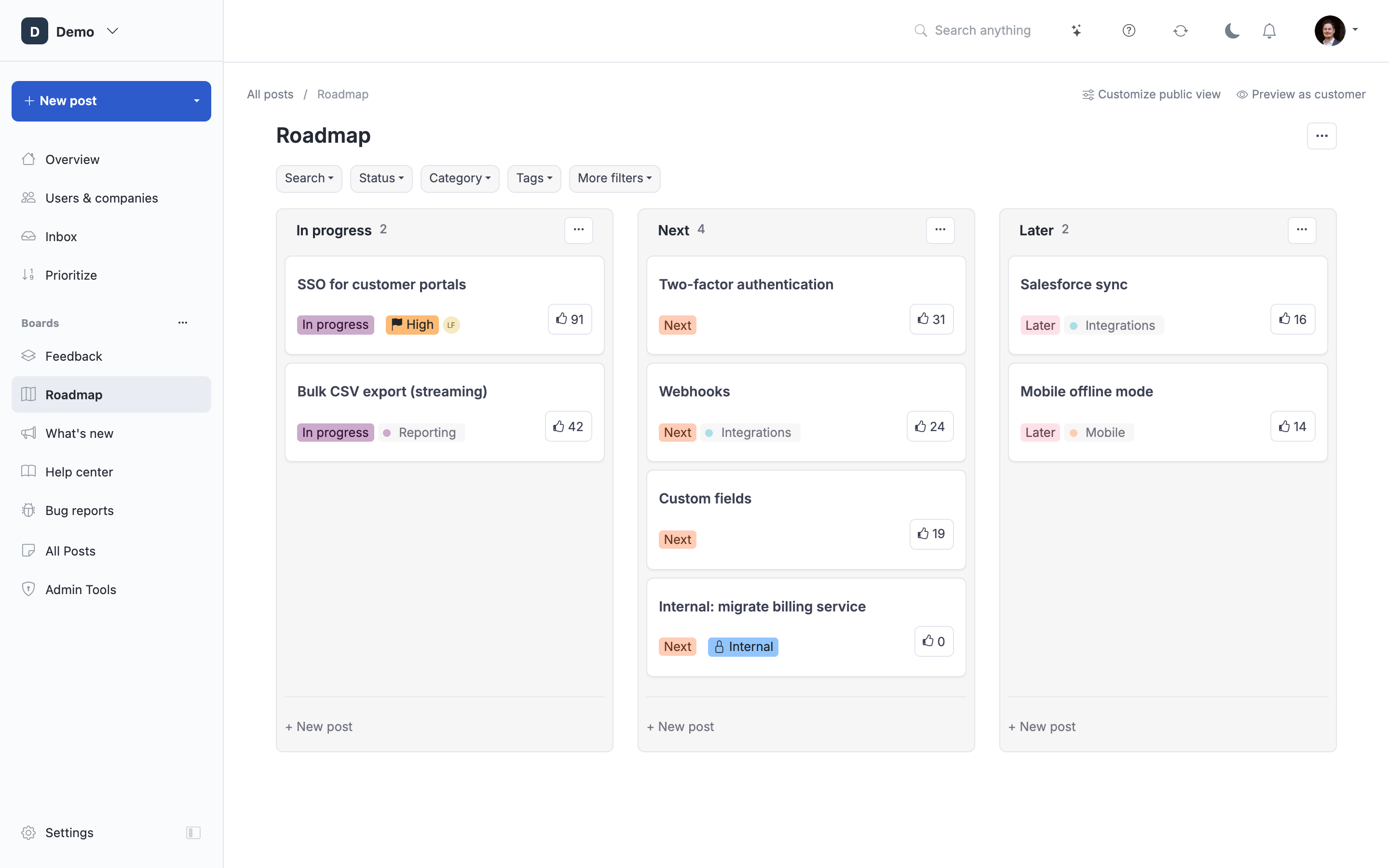
Learn how to use ProductLift's Kanban board view to visually manage your roadmap, track development progress, and update feature statuses with drag-and-drop ease.
What is Kanban Board View?
Kanban board view in ProductLift is a visual workflow management system that displays your posts as cards organized in columns by status. It provides a bird's-eye view of work in progress, making it easy to track features through development stages and identify bottlenecks at a glance.
Kanban boards are especially useful for roadmap management, allowing teams to see what's planned, in progress, in testing, and recently released in a single visual interface.
When to Use Kanban Board View
Use Kanban board for:
- Visual roadmap management and sprint planning
- Quick status updates via drag-and-drop
- Identifying workflow bottlenecks (too many items stuck in one status)
- Team standups and status meetings
- Communicating progress visually to stakeholders
- Managing work-in-progress (WIP) limits
Kanban vs. List View:
- Kanban View: Visual, workflow-oriented, shows status distribution
- List View: Detailed, text-oriented, better for reading descriptions
Accessing Kanban Board View
Enable Kanban View on a Board
Step 1: Navigate to Board
- Go to your Roadmap, Feedback Board, or any board
- Look for view switcher in top-right corner
- Click "Board View" or "Kanban" button
[Screenshot: Board view with toggle buttons showing "List View" and "Board View (Kanban)" options]
Step 2: Kanban Interface Appears
The board displays:
- Columns: One per status assigned to that board
- Cards: Posts displayed as movable cards
- Column headers: Status names with post counts
- Filters: Sidebar for filtering board
[Screenshot: Full Kanban board showing 5 columns (Planned, In Progress, Testing, Ready, Released) with multiple post cards in each column]
Understanding Kanban Board Layout
Column Structure
Columns Represent Statuses:
Each column corresponds to a workflow status:
Example Roadmap Kanban:
- Planned (12 items): Features committed for upcoming quarters
- In Progress (5 items): Currently in development
- Testing (3 items): In QA or beta testing
- Ready to Ship (2 items): Complete, awaiting deployment
- Released (8 items): Recently shipped
[Screenshot: Kanban board columns with post counts in headers: "Planned (12)", "In Progress (5)", etc.]
Column Order:
Columns typically flow left-to-right following your workflow:
Backlog → Planned → In Progress → Testing → Ready → ReleasedCustomize column order in Settings → Content organization → Statuses.
Card Structure
Each Card Displays:
Card Header:
- Post title (truncated if long)
- Category badge (color-coded)
- Priority indicator (if set)
Card Body:
- Vote count with icon
- Comment count with icon
- Follower count
- Assignee avatar (if assigned to team member)
Card Footer:
- Tags (color-coded badges)
- Last updated time
- Status indicator
[Screenshot: Individual Kanban card showing title "Dark Mode Support", category badge "UI/UX", 47 votes, 12 comments, assignee avatar, and tags]
Card Actions:
Hover over card to reveal actions:
- Quick edit icon
- View details (opens full post)
- Assign to team member
- Add to favorites
Customizing Kanban View
Show/Hide Columns:
Control which statuses appear:
- Settings → Content organization → Statuses
- For each status, check "Show on Kanban Board"
- Hide irrelevant statuses (e.g., "Won't Build") to declutter
Column Width:
- Adjust column width by dragging column borders
- Wider columns for longer post titles
- Narrower for minimalist view
Card Density:
Settings → Boards → [Board] → Card Display:
- Compact: Minimal info, more cards visible
- Normal: Balanced view (default)
- Detailed: Full descriptions, fewer cards per view
Color Coding:
Cards inherit color from:
- Status color: Card border/header background
- Category color: Category badge color
- Priority: High-priority posts have visual indicator
ETA badge on cards:
Enable Board settings → Show estimated date on cards to render each post's ETA as a small badge on the card. Works in Kanban, list, and card views. See Setting an ETA on posts for how ETAs are set and how they affect the public API projection.
Using Drag-and-Drop to Update Status
Basic Drag-and-Drop
Update Post Status:
- Click and hold card
- Drag to target column (status)
- Drop in new column
- Post status updates automatically
- Confirm whether to email followers before completing the move.
[Screenshot: Animation or series showing card being dragged from "Planned" to "In Progress" column with dotted outline in target column]
Visual Feedback:
- Dragging: Card becomes semi-transparent
- Valid drop zone: Column highlights
- Invalid drop: Column shows "not allowed" indicator
- Drop success: Card smoothly animates to new position
Automatic Actions on Status Change
When you drag a card to a new column:
Email choice:
- The confirmation dialog lets you choose Email followers.
- Its initial state follows Settings → Notifications & email → Notifications.
- Eligible followers receive a status email only when you confirm that choice. Dragging alone does not send the email.
Activity Logged:
- Status change recorded in post history
- Timestamp and user who made change logged
- Visible in activity stream
Example Email Notification:
Dark Mode Support status changed to In Progress
We've started working on this feature! Follow along for updates as we make progress.
[Screenshot: Email notification showing status change from Planned to In Progress]
Bulk Status Updates
Move Multiple Cards at Once:
- Select multiple cards (Shift+Click or Ctrl+Click)
- Drag selected group to target column
- Drop to update all statuses
- Confirmation dialog appears
- Confirm bulk update
[Screenshot: Three cards selected (highlighted), being dragged together to "Testing" column]
Bulk Update Confirmation:
"Move 3 posts to Testing? This will notify 127 followers across all posts."
- [ ] Add comment to all posts (optional)
- [Confirm] [Cancel]
Filtering Kanban Board
Available Filters
Filter by Category:
- Show only Mobile posts, or Billing posts
- Quickly focus on specific product area
- Filter sidebar: Category checkboxes
Filter by Tag:
- Show posts tagged "ios", "enterprise", "quick-win"
- Multiple tag selection (AND/OR logic)
- Filter sidebar: Tag input with autocomplete
Filter by Assignee:
- See what specific team member is working on
- Filter sidebar: Team member dropdown
Filter by Date:
- Posts created last 30 days
- Posts updated recently
- Filter sidebar: Date range picker
Filter by Customer Segment:
- Show posts voted by Enterprise customers
- Filter by MRR range
- Filter sidebar: Segment selectors
[Screenshot: Kanban board with filter sidebar open showing category checkboxes, tag input, assignee dropdown, and date range]
Save Filtered Views:
- Apply filters
- Click "Save Filter View"
- Name your view: "Enterprise Mobile Roadmap"
- Load saved views with one click
Workflow Management Best Practices
Work-in-Progress (WIP) Limits
Set Column Limits:
Prevent bottlenecks by limiting items per column:
Example WIP Limits:
- Planned: Unlimited (backlog)
- In Progress: 5 items max (team capacity)
- Testing: 3 items max (QA bandwidth)
- Ready to Ship: 2 items max (deployment cycle)
[Screenshot: Kanban column header showing "In Progress (5/5)" with limit indicator and warning color]
Benefits:
- Prevents overloading team
- Highlights bottlenecks visually
- Encourages finishing work before starting new items
Configure Limits:
Settings → Boards → [Board] → WIP Limits:
- Set limit per status
- Warning threshold (80% of limit)
- Hard limit (prevent drag-drop when exceeded)
Column Organization
Order Cards Within Column:
Prioritize work by dragging cards up/down within a column:
- Top of column: Highest priority, work on first
- Bottom of column: Lower priority
- Drag to reorder anytime
[Screenshot: Cursor dragging card up within "In Progress" column to reorder priority]
Auto-Sort Options:
Settings → Boards → [Board] → Auto-Sort:
- By votes (most voted at top)
- By MRR (highest revenue impact first)
- By date (oldest first, newest first)
- By estimated date / ETA (soonest first or latest first, posts without an ETA sort to the bottom)
- Manual (drag to customize)
The same options are available at runtime from the Sort dropdown on the board header.
Daily Standup with Kanban
Use Kanban for Team Meetings:
Standup Workflow:
- Open Kanban board on shared screen
- Walk through columns left-to-right
- For each "In Progress" item:
- Team member provides update
- Move to "Testing" if ready
- Add blockers as comments
- Check "Testing" column:
- Ready to ship? Move to "Ready"
- Bugs found? Move back to "In Progress"
- Review "Ready" column:
- Schedule deployments
- Move to "Released" after shipping
- Pull new work from "Planned":
- Move top priorities to "In Progress"
- Respect WIP limits
[Screenshot: Kanban board during team meeting with annotations showing updates and status changes]
Benefits:
- Visual progress tracking
- Real-time status updates
- Team alignment on priorities
Multi-Product Kanban Boards
Separate Boards per Product
Create Multiple Roadmap Boards:
- Product A Roadmap (Kanban)
- Product B Roadmap (Kanban)
- Cross-Product Features (Kanban)
Each has its own Kanban board with relevant statuses.
Combined Board with Filtering
Single Board for All Products:
- Use categories: "Product A", "Product B"
- Filter Kanban by category to focus
- Switch between views quickly
Swimlanes (if available):
Group cards horizontally by category or product:
[Product A]:  [Planned] [In Progress] [Testing] [Released]
[Product B]:  [Planned] [In Progress] [Testing] [Released]
Visual separation while maintaining single board.
Kanban for Different Board Types
Roadmap Kanban
Typical Statuses:
- Planned → In Progress → Testing → Released
Focus:
- Feature development lifecycle
- Communicating progress to customers
- Sprint planning and tracking
Feedback Board Kanban
Typical Statuses:
- New → Under Review → Planned → Won't Build
Focus:
- Triage and prioritization
- Moving high-value ideas to roadmap
- Managing feedback backlog
Changelog Kanban
Typical Statuses:
- Draft → Scheduled → Published
Focus:
- Managing release announcements
- Scheduling changelog publications
- Coordinating release communications
Keyboard Shortcuts
Navigate Kanban Faster:
- Arrow keys: Move between cards
- Enter: Open selected card
- E: Quick edit
- D: Drag mode (use arrows to move)
- Esc: Cancel drag
- Space: Select/deselect card
[Screenshot: Keyboard shortcut cheatsheet overlay on Kanban board]
Mobile Kanban View
Kanban on Mobile Devices:
Vertical Scrolling:
- Columns stack vertically on mobile
- Scroll down to see all statuses
- Simplified card display (title, votes only)
Drag-and-Drop on Touch:
- Long-press card to enter drag mode
- Drag to target column
- Drop to update status
Mobile-Optimized:
- Larger touch targets
- Simplified filters (drawer interface)
- Fewer cards per view (performance)
[Screenshot: Mobile Kanban view showing vertically stacked columns with touch-friendly interface]
Performance and Scalability
Large Boards (100+ Cards)
Optimization Features:
Virtual Scrolling:
- Only render visible cards
- Lazy load as you scroll
- Maintains performance with 500+ items
Pagination:
- Show first 20 cards per column
- "Load More" button at column bottom
- Reduces initial load time
Search and Filter:
- Search within Kanban to find specific posts
- Use filters to reduce visible cards
- Save filtered views for common queries
Board Loading States
Progressive Loading:
- Column headers appear first
- Card count displays per column
- Cards load in batches
- Images/avatars lazy load
Smooth experience even with hundreds of posts.
Common Use Cases
Sprint Planning
Use Kanban to plan sprints:
- Review "Planned" column backlog
- Drag top priorities to "In Progress"
- Respect WIP limits (don't overload team)
- Assign cards to team members
- Kanban state = sprint board
Release Planning
Organize by release:
Add "Target Release" tag (e.g., "v2.4"):
- Filter Kanban by release tag
- See all features for specific release
- Track progress toward release goals
Customer Communication
Show progress transparently:
- Embed public roadmap Kanban on website
- Customers see real-time status
- Drag updates trigger notifications
- Build trust through transparency
Troubleshooting
Issue: Cards Not Moving Between Columns
Solution:
- Check that you have permission to edit posts
- Verify status-to-board mapping (Settings → Content organization → Statuses)
- Ensure target status is valid workflow transition
Issue: Too Many Columns, Board Hard to Navigate
Solution:
- Hide irrelevant statuses (Settings → Content organization → Statuses → Show on Kanban)
- Use horizontal scrolling
- Consider simplifying workflow statuses
Issue: Kanban Board Loading Slowly
Solution:
- Enable pagination (limit cards per column)
- Use filters to reduce visible posts
- Archive old "Released" posts to Changelog
Issue: Cards Missing from Expected Column
Solution:
- Check filters (may be hiding cards)
- Verify post has correct status
- Ensure status is assigned to current board
Related Articles
Use Case Workflows:
- Building and Sharing a Roadmap Workflow - Using Kanban for roadmap management
- Feature Launch Workflow - Tracking features through Kanban stages
Roadmap Features:
- Creating and Managing a Roadmap - Roadmap setup and configuration
- Roadmap Widgets - Embed Kanban view on your website
Workflow Management:
- Understanding Boards and Workflow - Status and board relationships
- Bulk Post Operations - Bulk status updates