Moderate posts
How to get there: Click Inbox → Moderation in the sidebar to review pending posts. Configure moderation rules in Settings → Moderation rules tab.
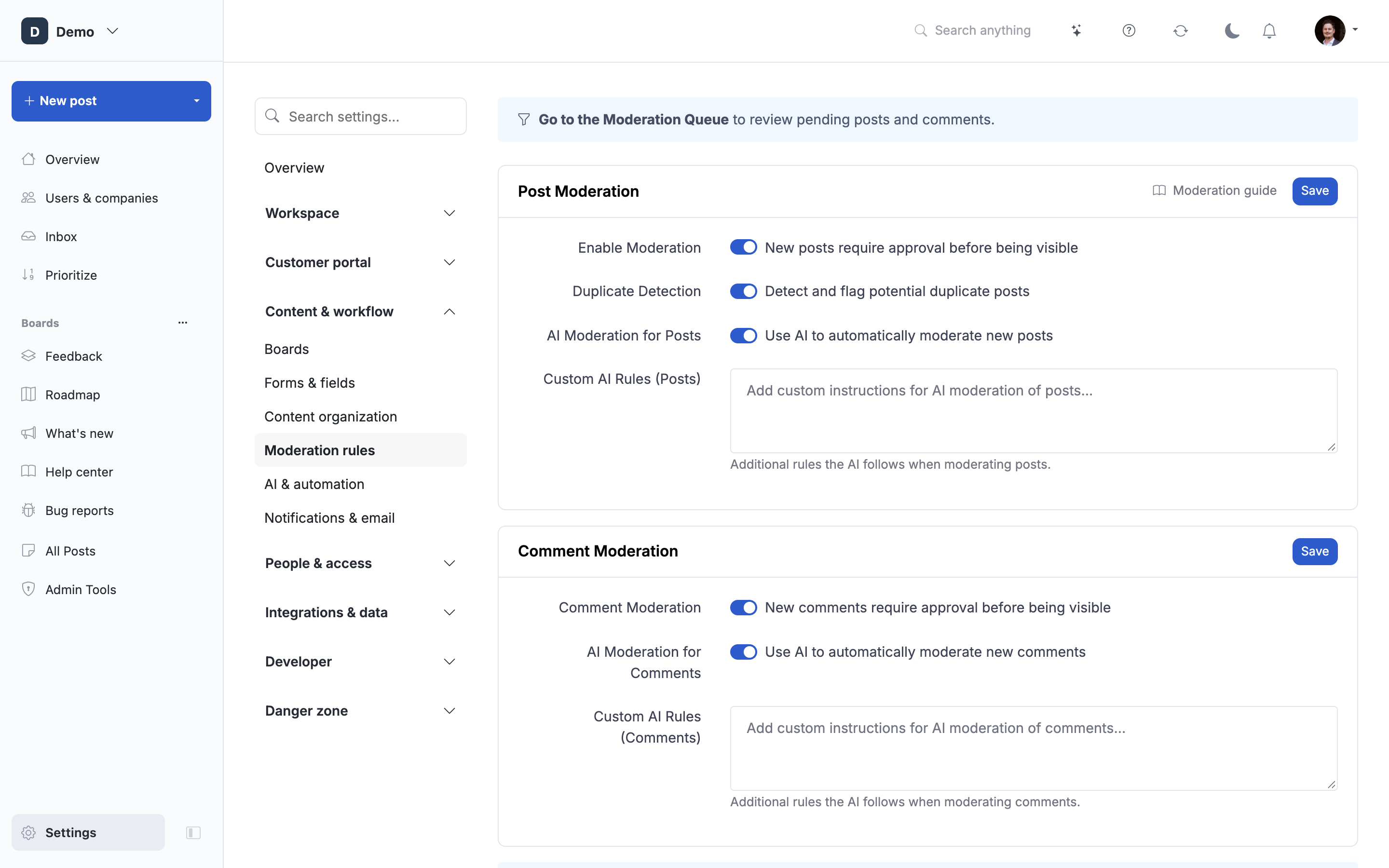
Learn how to review, approve, and reject customer feedback submissions using ProductLift's moderation system to maintain quality and prevent spam while keeping feedback flowing.
What is Post Moderation?
Post moderation is the process of reviewing customer-submitted feedback before it appears publicly on your feedback board. Moderation helps you filter spam, improve post quality, catch duplicates, and ensure submitted content is appropriate and actionable.
ProductLift offers both manual moderation (you review each post) and AI-powered auto-moderation (AI handles obvious approvals/rejections automatically).
When to Use Moderation
Enable moderation if:
- You receive high submission volumes
- Spam is a concern
- You want to ensure post quality
- You need to catch duplicates before publishing
- Customer-facing portal requires professional appearance
Skip moderation if:
- Low submission volume (easy to monitor published posts)
- Trusted user base (internal team, vetted customers)
- Speed is more important than quality filtering
- You can moderate after publishing
Setting Up Post Moderation
Enable Moderation
Step 1: Configure Default Status
- Navigate to Settings → General
- Find "Default Status for New Posts"
- Select a moderation status (e.g., "Pending Review", "New")
- Save settings
[Screenshot: General settings showing "Default Status" dropdown with "Pending Review" selected]
Step 2: Create Moderation Board (Optional)
For dedicated moderation workflow:
- Navigate to Settings → Boards
- Click "Add Board"
- Name: "Moderation Queue"
- Type: Feedback Board
- Visibility: Admin Only
- Assign "Pending Review" status to this board
- Save board
Now all pending posts appear only on admin-only moderation board.
[Screenshot: Board settings showing Admin Only visibility and Pending Review status assignment]
Step 3: Assign Moderation Status to Board
- Navigate to Settings → Content organization → Statuses
- Find your moderation status ("Pending Review", "New")
- Check which boards it appears on
- Typically: Moderation Queue (Admin Only)
- Uncheck public boards so pending posts aren't visible
- Save
Workflow:
Submission → Pending Review (Admin Only) → Approved → Public Feedback Board
                                        → Rejected → Hidden
Manual Moderation Workflow
Accessing Moderation Queue
Navigate to Pending Posts:
- Go to Moderation → Pending Posts
- Or go to your Moderation Queue board
- See all posts awaiting review
[Screenshot: Moderation queue showing list of pending posts with user info, submission time, and preview]
Queue Information Displayed:
For each pending post:
- User: Name, email, avatar
- Customer Data: MRR, plan type (if Stripe integrated)
- Post Title: Clickable to view full post
- Description Preview: First 150 characters
- Metadata: Category, tags, submission time
- Attachments: Screenshot or file indicators
- Similar Posts: Duplicate check indicator
Reviewing Individual Posts
Step 1: Open Post for Review
- Click post title to view full details
- Read complete description
- Review any attachments
- Check for similar/duplicate posts
[Screenshot: Post detail view showing full description, attachments, user info, and moderation actions]
Step 2: Evaluate Post Quality
Good Post (Approve):
- ✓ Clear, specific feature request or bug report
- ✓ Includes use case or context
- ✓ Relevant to your product
- ✓ Respectful and appropriate
- ✓ Not a duplicate
Poor Post (Reject or Edit):
- ✗ Spam or promotional content
- ✗ Offensive or abusive language
- ✗ Completely off-topic
- ✗ Incomprehensible or gibberish
- ✗ Support request (should go to support)
- ✗ Duplicate of existing post
Borderline Post (Edit):
- ⚠️ Good idea but poorly worded
- ⚠️ Contains sensitive info (remove before approving)
- ⚠️ Needs category/tag assignment
- ⚠️ Could be clearer with minor edits
Moderation Actions
Action 1: Approve
For quality posts that meet your standards:
- Click "Approve" button
- Post publishes to public feedback board
- User receives confirmation email
- Post appears on relevant boards based on status
Optional: Edit Before Approving
- Fix typos or grammar
- Clarify title for searchability
- Remove sensitive information
- Add category and tags
- Then approve
[Screenshot: Approve button highlighted with optional category/tag assignment before approving]
Action 2: Reject
For spam, inappropriate, or off-topic posts:
- Click "Reject" button
- Optionally select rejection reason:
- Spam
- Duplicate
- Off-topic
- Inappropriate
- Support request
- Other
- Optionally add message to user explaining rejection
- Click confirm
Rejection Outcome:
- Post hidden from public view
- User receives rejection email (if configured)
- Post viewable in "Rejected Posts" for audit
- User can resubmit revised version
[Screenshot: Reject dialog showing reason dropdown and optional message field]
Action 3: Edit
For posts needing improvement before approval:
- Click "Edit" button
- Modify title for clarity
- Improve description (fix typos, clarify intent)
- Remove sensitive info (emails, API keys, passwords)
- Add category and tags
- Click "Save" then "Approve"
Edit Guidelines:
- Preserve user's original intent
- Don't change meaning
- Minor improvements only
- Major changes? Ask user to clarify in comments
Action 4: Merge with Existing Post
For duplicates:
- Click "Merge" or "Mark as Duplicate"
- Select existing post to merge into
- Votes and comments combine
- Duplicate redirects to original
- User notified of merge
See Merging Posts for detailed merge workflow.
Bulk Moderation
For high-volume moderation:
Select Multiple Posts:
- Check boxes next to posts in queue
- Select 5-20 posts at once
- Click "Bulk Actions"
Bulk Approve:
- Select multiple quality posts
- Click "Bulk Approve"
- Optionally assign category to all
- All posts publish simultaneously
Bulk Reject:
- Select multiple spam posts
- Click "Bulk Reject"
- Choose rejection reason (applies to all)
- All posts rejected simultaneously
[Screenshot: Bulk actions panel showing 8 selected posts with Approve/Reject buttons]
See Bulk Post Operations for advanced bulk actions.
AI-Powered Auto-Moderation
How AI Moderation Works
AI automatically reviews submissions and:
- Auto-approves obvious quality posts (detailed, clear, relevant)
- Auto-rejects obvious spam (promotional links, gibberish, abusive)
- Flags for manual review uncertain posts (medium confidence)
AI Analysis Factors:
- Content quality (clear vs. vague)
- Spam signals (links, promotional language)
- Relevance to your product (based on past posts)
- Duplicate detection (similar to existing posts)
- Appropriateness (offensive language check)
Setting Up AI Auto-Moderation
Step 1: Enable AI Moderation
- Navigate to Settings → Moderation rules
- Toggle "Enable AI Auto-Moderation"
- Configure settings
[Screenshot: AI moderation settings page with enable toggle and configuration options]
Step 2: Set Confidence Threshold
Choose auto-approval sensitivity:
High Threshold (Recommended):
- Auto-approve: 90%+ confidence
- Auto-reject: 90%+ confidence
- Manual review: Everything else
- Most conservative, fewest errors
Medium Threshold:
- Auto-approve: 70%+ confidence
- Auto-reject: 70%+ confidence
- More automation, slightly higher error risk
Low Threshold (Aggressive):
- Auto-approve: 50%+ confidence
- Auto-reject: 50%+ confidence
- Maximum automation, highest error risk
[Screenshot: Confidence threshold slider showing High/Medium/Low options]
Step 3: Train AI with Examples
Improve AI accuracy by providing training data:
Good Examples:
- Select 10-20 high-quality approved posts
- Mark as "Training Example: Approve"
- AI learns what good feedback looks like
Bad Examples:
- Select spam or rejected posts
- Mark as "Training Example: Reject"
- AI learns what to filter out
AI Learning:
- More examples = better accuracy
- Update training quarterly
- AI learns from your corrections
[Screenshot: AI training interface with "Good Examples" and "Bad Examples" columns]
See Setting Up AI Auto-Moderation for detailed AI configuration.
Monitoring AI Performance
Review AI Decisions:
- Navigate to Moderation → AI Activity
- See recent auto-approvals and auto-rejections
- Review for accuracy
Correct AI Mistakes:
If AI incorrectly approves:
- Reject the post manually
- Mark as AI error (helps training)
If AI incorrectly rejects:
- Find in Rejected Posts
- Approve manually
- Mark as AI error
AI improves from corrections over time.
AI Performance Metrics:
Monitor:
- Auto-approval rate (target: 60-80%)
- Auto-rejection rate (target: 10-20%)
- Manual review rate (target: 10-30%)
- Error rate (false positives/negatives)
Moderation Best Practices
Daily Moderation Schedule
Set Moderation Cadence:
- Daily review (24-hour SLA recommended)
- Bi-daily for low volume
- Real-time for high-priority periods (product launches)
Avoid:
- Letting queue grow to 50+ posts
- Delays longer than 3 days (frustrates users)
Consistent Approval Criteria
Document Standards:
Create moderation guidelines:
- What qualifies as "spam"
- When to reject vs. edit
- Duplicate threshold
- Tone requirements
Share with Team:
- Ensure all moderators use same criteria
- Reduces inconsistency
- Builds user trust
Provide Helpful Feedback
When Rejecting:
Don't just reject silently,explain why:
Example Rejection Messages:
"Thanks for submitting! This appears to be a support request rather than a feature suggestion. Please contact support@company.com for help with your account issue."
"We appreciate your input! However, this is a duplicate of an existing post. We've merged your submission with [Post Title]. You can vote and comment there."
"Thanks for your suggestion! This feature is outside the scope of our current product focus. We're concentrating on [core features] for now."
Moderate with Empathy
Remember:
- Customers took time to submit feedback
- Rejection can feel personal
- Explain decisions kindly
- Thank them for participating
Good Rejection:
"Thanks for the detailed suggestion! After review, we've decided this doesn't align with our current product direction (B2B focus). We appreciate you taking the time to share your thoughts!"
Bad Rejection:
"Rejected. Off-topic." (too harsh, no explanation)
Moderation for Different Scenarios
High-Volume Moderation
When receiving 50+ submissions per day:
- Enable AI auto-moderation (handle 70% automatically)
- Use bulk actions for remaining posts
- Delegate moderation to multiple team members
- Set up admin notification filters
Low-Volume Moderation
When receiving <10 submissions per day:
- Manual moderation may be sufficient
- Review daily or every few days
- Personal touch on each post (comments, thank yous)
- No AI needed unless spam is issue
Preventing Duplicate Submissions
During Moderation:
- Check "Similar Posts" indicator
- Search existing posts before approving
- Merge duplicates immediately
- AI can flag duplicates for you
Before Submission:
- Show similar posts during submission (widget feature)
- Encourage users to search first
- Display "popular requests" prominently
Viewing Rejected Posts
Access Rejected Posts:
- Navigate to Moderation → Rejected Posts
- Or filter by status: "Rejected"
- Review rejection history
Audit Purposes:
- Verify AI rejections are accurate
- Check for false positives
- Re-approve if needed
- Learn moderation patterns
Reconsider Rejections:
Occasionally review rejected posts:
- Strategy may have changed
- Duplicate may now be unique angle
- Spam filter may have false positive
Troubleshooting
Issue: Moderation Queue Growing Too Large
Solution:
- Enable AI auto-moderation
- Add team members to moderate
- Set daily moderation time
- Increase auto-approval threshold
Issue: Too Many Good Posts Being Rejected
Solution:
- Lower AI rejection threshold
- Review AI training examples
- Check moderation criteria (too strict?)
Issue: Spam Getting Through
Solution:
- Increase AI training with spam examples
- Add CAPTCHA to submission form
- Rate-limit submissions per user
- Block specific email domains
Issue: Users Frustrated by Moderation Delays
Solution:
- Set 24-hour moderation SLA
- Send confirmation email on submission
- Show "Under Review" status to submitter
- Enable AI for faster approvals
Related Articles
Moderation Workflow:
- Content Moderation Workflow - Complete moderation process end-to-end
- Setting Up AI Auto-Moderation - Detailed AI configuration
- Bulk Post Operations - Manage posts at scale
Post Management:
- Merging Posts - Handle duplicates
- Splitting Posts - Separate multi-idea submissions
- Complete Feedback Workflow - Moderation within overall feedback process