Manage user roles and permissions
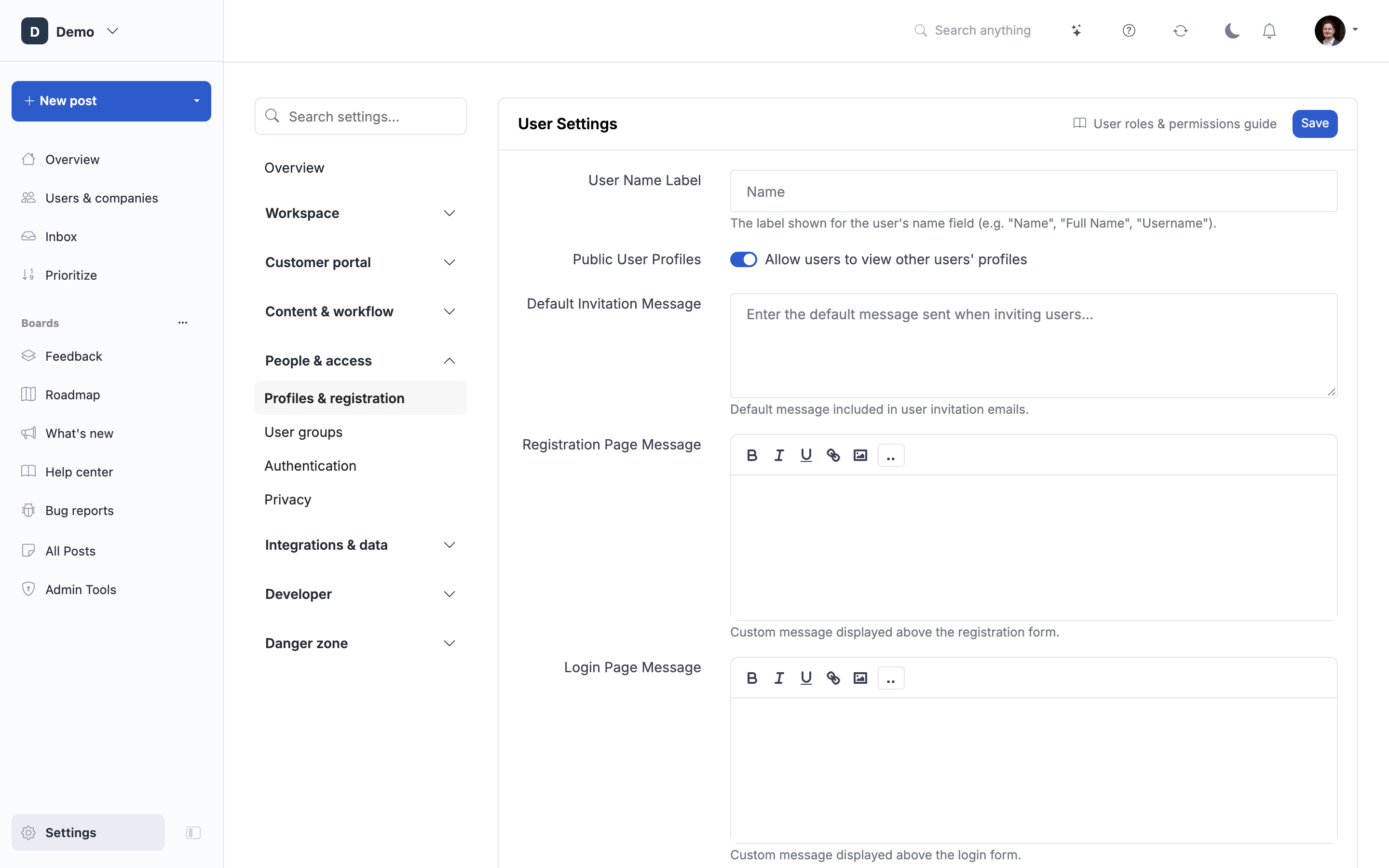
How to get there: Team management lives at the top-level Users & companies item in the sidebar. Portal-wide user settings (name label, invitation message, registration/login text) live at Settings → Profiles & registration.
Learn about the roles in ProductLift, what each role can do, and how to manage access to your feedback portal.
User Roles Overview
ProductLift has two stored roles on the user record (admin and member), and one implicit role for people who aren't signed in:
1. Admin - Full control over the portal (team seats)
2. Member - Any registered end user of the portal (customer, community member, teammate viewing only)
3. Guest - Anonymous visitor (not signed in)
There is no separate "team member with elevated access" tier. If you want someone on your team to have admin-side capabilities (moderate, invite, manage settings, see analytics), invite them as an Admin. If they only need to comment, vote, or file posts, they are a Member.
[Screenshot: Two-tier diagram showing Admin (team) and Member (end user), with Guest below as anonymous visitor]
Role Details
Admin Role
Purpose: Portal owners and administrators with full control.
Who Should Be Admin:
- Product managers
- Portal owners
- Team leads requiring full access
- IT administrators
Key Capabilities:
Content Management:
- Create, edit, delete any post
- Moderate all content
- Merge and split posts
- Bulk operations on all posts
- Import/export data
Configuration:
- Change portal settings
- Manage billing and subscription
- Configure integrations
- Customize branding and design
- Manage email templates
- Configure AI features
User Management:
- Invite and remove team members
- Assign roles (make others admins/members)
- View all users
- Manage user segments
- Delete user accounts
Analytics:
- Access all analytics
- Export all data
- View funnel analytics
- Access user segments analysis
Internal Features:
- Access admin-only boards
- View internal comments
- Manage internal workflows
[Screenshot: Admin permissions checklist showing all capabilities checked]
Limitations:
Admins have no restrictions within ProductLift.
Member Role
Purpose: Registered end users of the portal. This is the default role for anyone who signs up.
Who Has Member Role:
- Customers who signed up
- Community members
- External stakeholders
- Teammates who only need to view/vote/comment (not manage the portal)
Key Capabilities:
Content Interaction:
- Create posts
- Vote on posts
- Comment on posts (public comments only; internal comments are admin-only)
- Follow posts for updates
- Edit own posts and comments
- Delete own posts and comments
Profile Management:
- Update profile information
- Upload avatar
- Configure notification preferences
- View own activity history
Visibility:
- View public boards
- View boards their user groups have access to
- Cannot see admin-only boards or internal content
[Screenshot: Member permissions checklist showing content-interaction capabilities]
Limitations:
Members CANNOT:
- Access the admin interface (
/admin/*) - Moderate content
- View or create internal comments
- Assign posts
- Change post status
- Access analytics or funnel dashboards
- Bulk operations, import, or export
- See other users' contact information
- Manage users, groups, or invitations
- Configure integrations, webhooks, or API tokens
If you need someone to do any of the above, invite them as an Admin instead.
Guest Role
Purpose: Anonymous visitors to public portal.
Who Is Guest:
- Anyone not logged in
- First-time visitors
- Prospective customers
Key Capabilities:
View-Only (Default):
- View public posts
- View public boards
- View comments
- Browse categories and filters
Limited Interaction (If Enabled):
- Some portals allow guests to:
- Vote on posts (tracked by cookie)
- Submit posts (guest enters a name and email on the form)
[Screenshot: Guest permissions showing view-only access with optional interaction capabilities]
Limitations:
Guests CANNOT:
- Comment on posts (commenting always requires an account)
- Edit any content
- Access admin features
- View private boards
- Follow posts
- See internal content
- Access profiles
- View analytics
Security:
- Rate limiting applied
- Cannot spam posts
Permission Comparison Table
| Feature | Admin | Member | Guest |
|---|---|---|---|
| Content | |||
| Create posts | ✅ | ✅ | ⚙️ If Anonymous Posts is on |
| Edit any post | ✅ | ❌ | ❌ |
| Edit own posts | ✅ | ✅ | ❌ |
| Delete any post | ✅ | ❌ | ❌ |
| Moderate content | ✅ | ❌ | ❌ |
| Merge/split posts | ✅ | ❌ | ❌ |
| Bulk operations | ✅ | ❌ | ❌ |
| Vote on posts | ✅ | ✅ | ⚙️ If Anonymous Voting is on |
| Comment on posts | ✅ | ✅ | ❌ |
| Internal comments | ✅ | ❌ | ❌ |
| Management | |||
| Assign posts | ✅ | ❌ | ❌ |
| Change status | ✅ | ❌ | ❌ |
| Manage categories/tags/statuses | ✅ | ❌ | ❌ |
| Import/export | ✅ | ❌ | ❌ |
| Settings | |||
| Portal settings | ✅ | ❌ | ❌ |
| Billing | ✅ | ❌ | ❌ |
| Integrations, webhooks, API tokens | ✅ | ❌ | ❌ |
| Branding | ✅ | ❌ | ❌ |
| Email templates | ✅ | ❌ | ❌ |
| Users & companies | |||
| Invite admins or users | ✅ | ❌ | ❌ |
| Assign / change roles | ✅ | ❌ | ❌ |
| Block or delete users | ✅ | ❌ | ❌ |
| View user list | ✅ | ❌ | ❌ |
| Manage user groups | ✅ | ❌ | ❌ |
| Analytics | |||
| View analytics | ✅ | ❌ | ❌ |
| Export data | ✅ | ❌ | ❌ |
| Funnel analytics | ✅ | ❌ | ❌ |
| User segments | ✅ | ❌ | ❌ |
✅ = Full Access | ⚙️ = Configurable (portal-wide toggle) | ❌ = No Access
[Screenshot: Detailed permissions comparison table with visual checkmarks and icons]
Managing Users and Admins
Team management lives at the top-level Users & companies item in the sidebar (/admin/userlist), not under Settings.
Inviting Admins
Use this when you want to give someone admin access to the portal.
- Go to Users & companies in the sidebar
- Click Add Team / Admin in the top-right button bar
- Enter one or more email addresses (comma-separated or one per line)
- Optionally attach a personal message
- Click Send
Invitees receive an email with a signup link. Admin seats are counted against your plan's team-member limit.
[Screenshot: Users page with "Add Team / Admin" and "Add User" buttons in the top-right]
Inviting Regular Users
Use this when you want to pre-create end-user accounts (e.g. importing customers who should be able to vote or comment without going through public signup).
- Go to Users & companies in the sidebar
- Click Add User
- Enter emails and (optionally) names
- Click Send
For larger lists, use File import on the same page to upload a CSV/Excel file.
Changing a User's Role
- Go to Users & companies
- Find the user in the list
- Open their row actions and choose Change Role
- Select Admin or Member and confirm
The Change Role modal only offers Admin and Member. Admin gives full portal control; Member is the standard end-user role.
[Screenshot: Change Role modal with Admin and Member options]
Blocking or Deleting Users
From the same row actions on the Users & companies page:
- Block: the user cannot post, vote, comment, or perform any action. Their account still exists and can be unblocked later.
- Delete: deletes the user's personal data (email, name, password) and their votes. Their posts and comments remain but the author name is replaced with "[Deleted]". Optionally tick "Delete all posts, comments, and other data from this user" to remove everything. This action is irreversible.
Best Practice: Block instead of deleting if you may want to restore the account later.
The Users Page
The Users & companies page (/admin/userlist) is the AllUsersList view. It shows:
- Name, email, role, group memberships
- Customer status (active / churned / trial, when Stripe or SSO is connected)
- Signup date and last activity
- Filters in the left sidebar for role, status, groups, customer status, and saved segments
Top-right buttons: Companies, User Groups, File import, Export, Add Team / Admin, Add User.
Only admins can access this page.
Configuring User Permissions
Public vs. Private Portal
Portal Visibility Setting:
Settings → Authentication → Restrict access
Options:
Public Portal (Default):
- Guests can view content
- Registration optional for viewing
- Users must register to comment (and, unless you enable anonymous posting/voting, to post and vote too)
- Good for product feedback collection
Private Portal:
- Login required to view anything
- No guest access
- All visitors must be registered users
- Good for internal tools or private communities
See Public vs private portal and Restrict access to your portal for the full breakdown, including approval-required signups.
[Screenshot: Restrict access in Authentication]
Guest Capabilities
Configure What Guests Can Do:
These options are portal-wide. Find them under Settings → Forms & fields → Form defaults.
Options:
- ☑ Guests can view posts and comments (default, on any public board)
- ☐ Anonymous Posts (
allow_anonymous_to_create_posts): let visitors submit a post without logging in (they enter a name and email on the form) - ☐ Anonymous Voting (
allow_anonymous_to_vote): let visitors vote without logging in (tracked by cookie)
Commenting always requires an account. There is no guest-comment toggle. If lowering the barrier is the goal, enable JWT SSO (Settings → SSO) so users already signed in to your app land signed in on the portal, or turn on social login providers so registration is one click.
Recommendation: Allow viewing only, require registration for commenting, and use SSO to make signup frictionless.
[Screenshot: Form defaults with anonymous posting and voting controls]
User Capabilities
Configure What Registered Users Can Do:
Per-board interaction toggles live under Settings → Boards → [Select Board] → Posts → Interactions.
Per-board options:
- ☑ Enable voting (
enable_voting): turn the vote button on or off for this board - ☑ Enable commenting (
allow_post_comments): turn comments on or off for this board
Post moderation (require admin approval before new posts go live) is a portal-wide setting under Settings → Moderation rules, not a per-board option. See Post Moderation.
Use Cases:
Open Community:
- Voting and commenting enabled on every board
Controlled Community:
- Turn on moderation under Settings → Moderation so new posts and comments queue for approval
View-Only Community:
- Turn off commenting on curated boards (e.g. changelog) while keeping it on for feedback boards
[Screenshot: Posts → Interactions panel showing Enable voting and Enable commenting toggles]
Per-Board Permissions
Board-Level Access Control:
Each board can have its own visibility level under Settings → Boards → [Select Board] → Access & Visibility.
Board Visibility Options (Access Level dropdown):
- Public: Anyone can view (including guests, if the portal itself is public)
- Members and Admins: Only team members (admin + member roles) can view
- Admins only: Only admins can view
- Specific Groups: Only users in the selected user groups can view
There is no separate "Registered Users only" level per board. If you want to require login across the whole portal, use the portal-wide Restrict access toggle under Settings → Authentication.
Board Interaction Options:
Voting and commenting are on/off toggles per board (see "User Capabilities" above). They are not per-audience selectors. Anyone who can view the board and is signed in can comment; anyone who can view and is signed in (or a guest, if anonymous voting is on portal-wide) can vote.
Example Configurations:
Public Feedback Board:
- Access Level: Public
- Voting: On (optionally enable Anonymous Voting portal-wide so guests can vote too)
- Commenting: On (visitors must sign in or be signed in via SSO)
Internal Roadmap Board:
- Access Level: Admins only (or Members and Admins)
- Voting: Off
- Commenting: On for internal discussion
[Screenshot: Access & Visibility card with Access Level dropdown]
Advanced Permission Scenarios
Scenario 1: Customer Success / Support Team
Requirements:
- Respond to customer comments
- Update post status
- View analytics
Solution:
- Role: Admin (there is no "member-with-elevated-access" tier)
- If billing safety is a concern, the account owner should keep billing access to themselves and rely on the "no destructive settings without confirmation" UX pattern rather than a lower role
Scenario 2: Engineering Team
Requirements:
- View roadmap posts
- Update post status
- Add internal comments visible only to the team
Solution:
- Role: Admin
- Give them access to the roadmap board (or all boards)
- They can now change status and post internal comments
Scenario 3: Beta Tester Group
Requirements:
- Access to beta features board
- Cannot access all other content
- Can vote and comment
Solution:
- Role: Member
- Assigned to a "Beta Testers" user group
- Beta board Access Level: Specific Groups → Beta Testers
- Other sensitive boards: Access Level not Public (so they're hidden from members outside the group)
See User Groups and Management for group-based permissions.
Scenario 4: External Consultant
Requirements:
- View specific boards
- Comment on posts
- No admin access
Solution:
- Role: Member
- Add them to a dedicated user group
- Give that group access to only the boards they should see (via each board's Access & Visibility)
Best Practices
Assign Roles Appropriately
Guidelines:
Make Admin:
- Product managers
- Portal owners
- Engineering, design, customer success, support - anyone managing feedback day-to-day
- Anyone who needs to moderate, assign, change status, or see analytics
Keep as Member:
- Customers
- Community members
- External stakeholders
- Consultants (usually)
- Teammates who only need to browse, vote, or file feedback
Principle of Least Privilege: Only make people Admin if they need Admin capabilities. Because there is no middle tier, resist the urge to make every internal teammate an Admin when they only need view/vote access.
Regular Permission Audits
Quarterly Review:
Every 3 months:
- Review team member list
- Remove inactive team members
- Verify roles still appropriate
- Check if ex-employees still have access
- Audit user group memberships
Offboarding Checklist:
When a team member leaves:
- Change their role from Admin to Member (removes admin access, preserves history), or Block/Delete if the account should be closed entirely
- Reassign any posts they were the owner of
- Revoke API tokens they created (Webhooks page → API tokens)
Communicate Permission Changes
When Changing Permissions:
- Notify affected users
- Explain reason for change
- Provide documentation
- Offer training if needed
Example Email:
"Hi Sarah, we've updated your role to Member. You now have access to moderate posts and view analytics. Let me know if you have questions!"
Document Your Permission Strategy
Create Internal Guide:
Document for your team:
- Who should be admin vs. member
- Approval process for new team members
- Onboarding/offboarding procedures
- Escalation if permission issue
- Contact for permission requests
Security Considerations
Protect Admin Access
Best Practices:
- Limit number of admins (2-5 recommended)
- Use strong passwords
- Enable two-factor authentication (if available)
- Don't share admin credentials
- Review admin activity logs
API Token Management
Admins Only:
- Only admins can generate API tokens
- Tokens are Sanctum tokens attached to the portal and act with admin access via the API
- Treat like passwords
- Rotate regularly
- Delete tokens that are no longer in use
Manage tokens and webhooks under Settings → API & webhooks (/admin/settings/api-webhooks).
Audit Logs
Track Permission Changes:
Permission changes are tracked internally. Review your team member list regularly in Users & companies to ensure roles are appropriate.
Troubleshooting
Issue: User Can't See Expected Content
Solution:
- Check the user's role (Admin vs. Member)
- Check the board's Access Level (Public / Members and Admins / Admins only / Specific Groups)
- Verify user group membership if the board is group-restricted
- Check if the post is in a hidden or unlisted status
- Confirm the user is signed in
Issue: Teammate Has Too Much Access
Solution:
- Change their role from Admin to Member (Users → Change Role)
- Consider group-based board restrictions for finer control
- Note: there is no "moderate but not settings" middle tier; if you need finer separation, request it as a feature
Issue: Can't Change Another User's Role
Solution:
- Only admins can change roles
- You need to be logged in as an admin yourself
- Contact another admin if you don't have access
Issue: Ex-Teammate Still Has Access
Solution:
- Verify their role is now Member (or that they were blocked/deleted) on the Users page
- If they still hold API tokens, delete those under Webhooks → API tokens
- Have them clear browser cache / sign out
Issue: Guest Can Do Too Much
Solution:
- Review guest capabilities under Settings → Forms & fields → Form defaults and turn off Anonymous Posts and/or Anonymous Voting
- Consider making the portal private (login required) under Settings → Authentication → Restrict access
- Enable moderation under Settings → Moderation to queue new posts for approval
Related Articles
Access Control:
- User Groups and Management - Group-based permissions
- Portal Settings - General portal configuration
Team Management:
- Managing Customer Communication - Team workflows
- User Profile Features - User profile management
Security:
- ProductLift API - API key management
- Webhooks - Webhook security
Setup:
- First-Time Portal Setup - Initial team configuration