Choose a board type and template
How to get there: Go to Settings → Boards → Add Board, or use the template picker during onboarding.
Select one type, then click Create board. This creates one board at a time.
Each board in ProductLift has a type that controls how posts look and behave. When you add a board, you pick a template that sets the type plus a sensible starting configuration (statuses, view, toggles). You can change any of it afterwards from that board's settings.
This page summarizes what each template gives you out of the box.
The four core templates
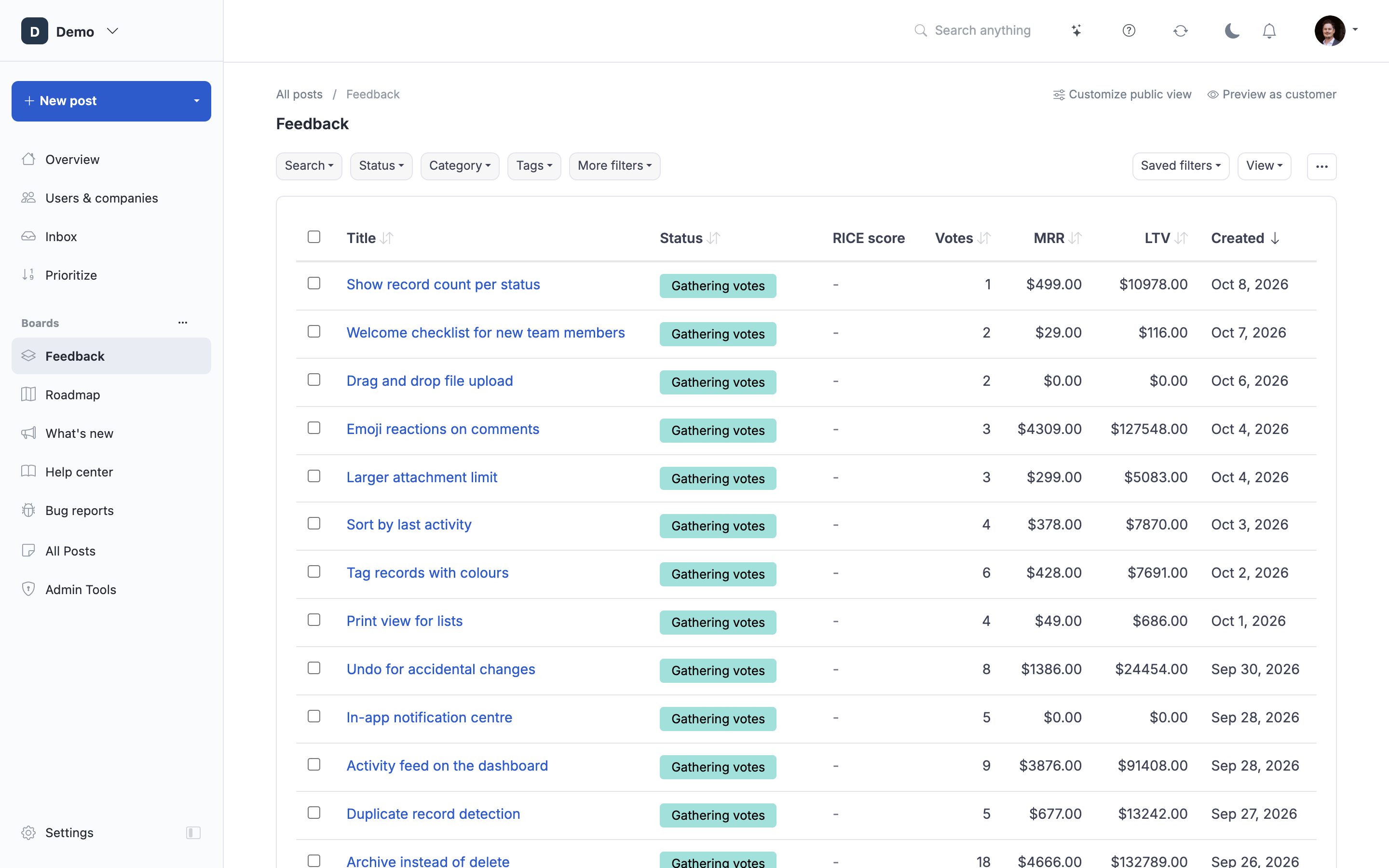
Feedback
The default board for collecting suggestions from your users.
- Type: Feedback
- Statuses: Gathering votes, Under consideration, Not planned, Closed
- Voting: on
- Submission form: on (users can add posts)
- Categories: enabled
- Best for: the "give us your ideas" board most portals start with.
Roadmap
A public view of what you're planning, working on, and shipped.
- Type: Roadmap
- Statuses: Later, Next, In progress, Done (you can pick a different preset in the configurator)
- Voting: on
- Submission form: off (posts land here after you move them from Feedback)
- View: grouped by status
- Best for: communicating direction without collecting new input on this board itself.
Changelog
An announcement stream of what you shipped.
- Type: Changelog
- Statuses: Added, Fixed, Improved
- Voting: off, reactions: on, inline comments: on
- View: timeline (cards view also available)
- Best for: replacing "here's what's new" emails with a public feed.
Knowledge Base
A library of help articles, organized in sections instead of statuses.
- Type: Knowledge Base
- Sections instead of statuses
- Submission form: off, voting: off
- AI answers: available (opt-in during the configurator)
- Best for: product docs, support articles, onboarding guides.
Specialized templates
These are variants of the core types with custom fields pre-configured. Reach them from Settings → Boards → Add Board (they don't show in the onboarding picker).
- Bug Tracker (Feedback type) with severity, steps to reproduce, expected vs actual result fields.
- Feature Requests (Feedback type) with use case, priority, and voting.
- Internal Issues (Feedback type) with assignee, priority, impact fields, admin-only visibility.
Other board types
- Kanban — a workflow board with customizable stage columns. Hidden from end users by default; useful for internal task tracking alongside your public boards.
- Custom — a blank board you fill with text or a custom query. Use for landing pages, announcements, or embedding third-party content.
- External Link — not a board at all, just an item in your board menu that points to an external URL.
Changing type or settings later
Everything a template sets is a normal per-board setting. Open Settings → Boards → (your board) for structure, submission defaults, and access. Open the board and click Customize public view for layout, visible filters, and voting or commenting controls. Switching a board's type after posts exist is possible but can leave statuses and fields in an inconsistent state; prefer picking the right type upfront.
See also: Manage boards, Set the default status, Manage categories.
 Powered by ProductLift