Install widgets
How to get there: Go to Settings → Share & embed → Widgets → click a board card or pick another widget kind.
ProductLift widgets let your users interact with your boards, submit feedback, or see your changelog without leaving your app or website. With single sign-on, they don't even need to log in to ProductLift.
You can run multiple widgets side-by-side, for example a roadmap embed and a changelog popup.
Widget kinds
When you open the Widgets page, the create flow is board-first:
- Embed a board -- the top section shows your existing boards as cards. Click any board to instantly create an embed widget for it. Embeds display the board inline on your page.
- More options -- below the board cards, three other widget kinds are available:
- Board Sidebar -- the board slides in from the side of the page when triggered.
- Feedback Form -- a popup or sidebar form for users to submit feedback or bug reports.
- What's New Popup -- a compact changelog popup that surfaces recent updates.
The list page shows your existing widgets as clean rows; click a row to open it.
Editing a widget
Each widget's edit page has three tabs (in this order):
- Installation -- the default landing tab. Pick your platform, copy the embed code, and follow per-platform instructions.
- Settings -- change widget name, board, header title, post types, capture options (console log, screenshot, system info), appearance toggles (navigation menu, board bar, breadcrumbs), and default status/category.
- Preview -- see a live preview of how the widget will look.
Capture console logs, screenshots, and system info
For a Feedback Form (post widget), you can attach page context automatically to help investigate bug reports.
- Go to Settings → Share & embed → Widgets and open your Feedback Form, or create one under More options.
- Open the Settings tab.
- Find Capture environment data and enable any of the following options independently:
- Capture console logs: attaches the last 50 buffered
log,warn, anderrormessages from the page, recorded after the ProductLift SDK starts capturing. For example, a checkout error can includePayment failed: request timed out. - Capture screenshot: captures the page when the user submits. The user sees a preview and can uncheck Include screenshot with submission before sending the post.
- Capture system info: attaches the page URL, screen and viewport dimensions, browser user agent, language, and timezone. This helps you identify which page and browser environment the report came from.
- Capture console logs: attaches the last 50 buffered
- Click Save Settings.
- Install the widget using the code on its Installation tab, then submit a test report from your own website.
These options use the JavaScript SDK on the page where feedback is submitted. A standalone iframe cannot capture its parent page's console logs, screenshot, or system info. Test from your installed widget so you can confirm the captured context comes from your website.
Open the submitted post as an admin to view its captured environment data, screenshot, and console logs. This context is admin-only.
For example, enable all three options for a checkout bug-report widget. A customer describes a stuck payment, previews the screenshot, and submits. Your team can then inspect the checkout URL, browser details, console error, and screenshot together with the report.
Per-platform installation
On the Installation tab, the Where will you install this widget? picker has presets for the most common platforms:
- HTML / JavaScript (default if you don't pick anything else)
- WordPress
- Wix
- Squarespace
- Webflow
- Framer
A "More platforms" group adds:
- Shopify
- BigCommerce
- React
- Vue.js
- Next.js
Each platform shows a tailored hint and (for embed widgets) the simplest install method, usually an iframe code block with an inline Copy button. For sidebar/popup widgets the page shows the SDK trigger snippet.
For embed widgets you can also expand Install via SDK to use the JavaScript SDK instead of an iframe (gives you SSO, dynamic resizing, and more control).
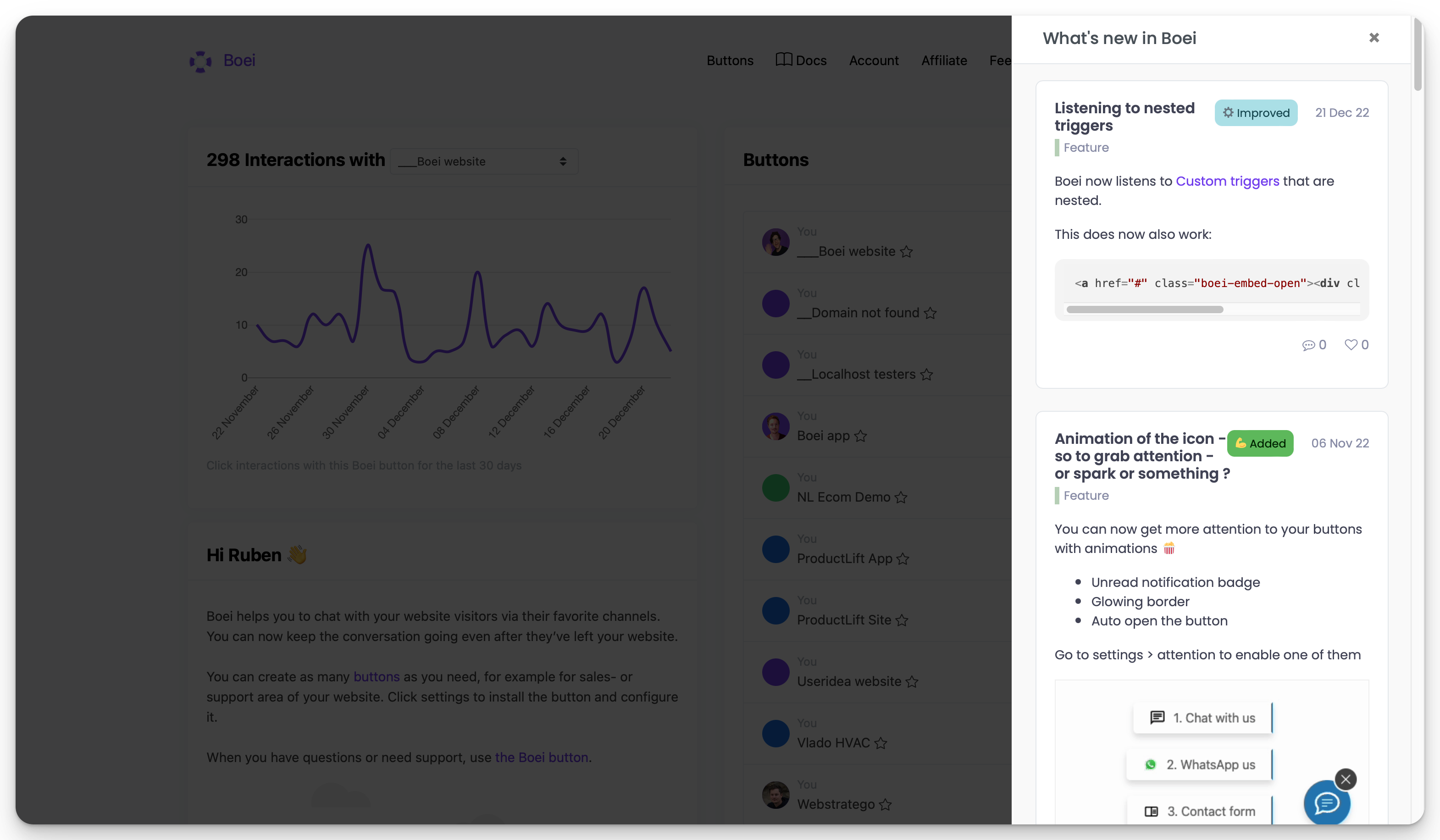
Sidebar widget
Sidebars slide in from the side of the page on demand. Add a trigger button or link, and the widget opens over your current page.
Embed widget
Embed widgets render the board inline on a page of your choice. Just paste the iframe (or SDK) code into the area where you want the board to show up.
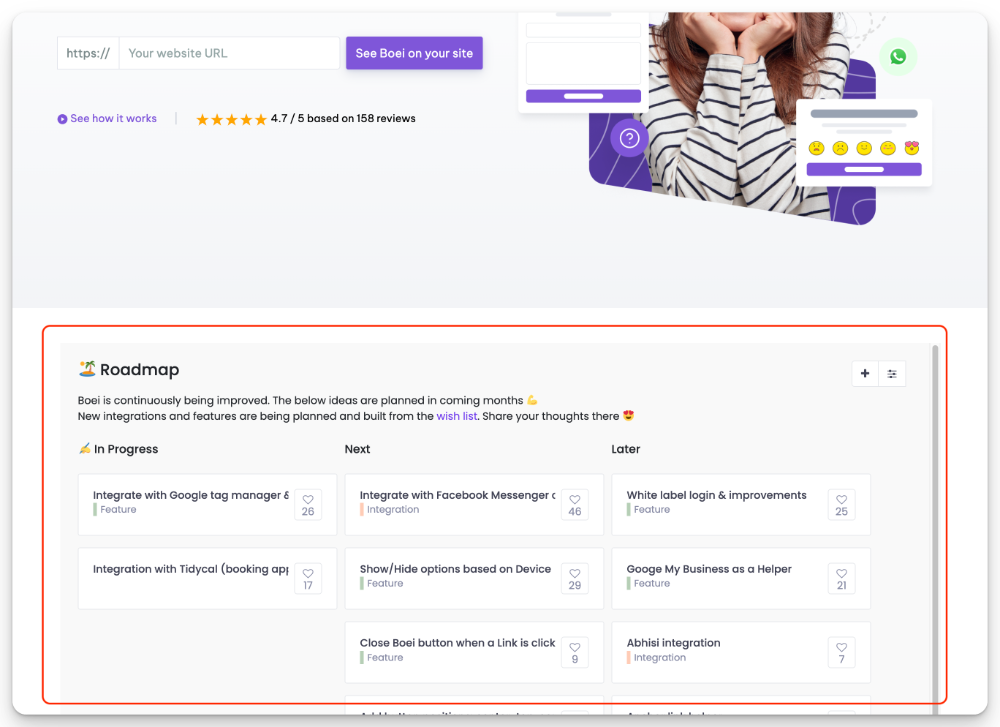
You can fully customize the embedded design with Custom (S)CSS.
Single sign-on
With single sign-on (SSO), your users don't have to create a separate ProductLift account. The widget recognizes them automatically.
The Installation tab has a collapsible Single Sign-On section with three options:
- WordPress (recommended for WordPress sites) -- drop a snippet into your theme's
functions.phpor a custom HTML plugin. - JavaScript SDK -- the easiest option for most sites: it generates the SSO token client-side. Add
data-productlift-linkto your links/iframes for it to attach. - Server-side JWT token -- generate a token on your server and pass it as
?sso=TOKENon the SDK URL or any link.
See the Single Sign-On guide for the full reference.
Unread badge for changelog widgets
When a widget points to a changelog board and the user is identified via SSO, ProductLift can mark the trigger element when there are new posts the user hasn't seen yet. The Installation tab shows an Unread badge link with a copy-able starter CSS snippet. Paste it into your stylesheet to render a red dot on the trigger; the dot clears once the user opens the changelog.
See Changelog widgets for the full description.
Showing the number of unread updates
Alongside the productlift-has-unread class, the SDK also sets a data-productlift-unread-count attribute on each flagged trigger. That lets you render the actual count (e.g. "3 new updates") instead of a plain dot.
Pure-CSS approach (no JavaScript needed):
.productlift-has-unread::after {
    content: attr(data-productlift-unread-count);
    /* your own bubble styling */
    background: #e53935;
    color: #fff;
    border-radius: 10px;
    padding: 2px 6px;
    font-size: 11px;
}
Programmatic approach (React, Vue, or any framework where you want the count in state):
// Preferred: react to the SDK's own signal so you don't race with page load.
window.addEventListener('productlift:unread-loaded', function (e) {
    // e.detail.counts is { widget_key: number, ... }
    const n = e.detail.counts['your-widget-key'] || 0;
    // …update your UI here
});

// Or read it on demand once the SDK has loaded:
const n = ProductLift.getUnreadCount('your-widget-key');
getUnreadCount(key) returns a number (0 when nothing is unread) once the map has loaded, or undefined before it loads. The productlift:unread-loaded event fires exactly once per page load with the full { widget_key: count } map.
How the reset works
When the user opens the widget, three things happen:
- The SDK removes the
productlift-has-unreadclass and thedata-productlift-unread-countattribute immediately, so the badge disappears without waiting for the network. - A short-lived suppression timestamp is written to
localStorage(10 minutes) so a reload before the server has caught up doesn't flicker the badge back. - The SDK sends a mark-viewed request to ProductLift. That records the view timestamp on the user's profile, which is what drives the count on future page loads.
The count is cached per user for up to 1 hour, but the cache key busts automatically whenever the user opens the tab or a new changelog post is published, so counts stay fresh in practice.
Counts count changelog posts only
For now, the unread count only reflects changelog posts. Feedback and roadmap tabs deliberately don't emit unread counts because "unread" is ambiguous there (drafts, status changes, comments). If you need counts for those, let us know your use case.
Installation in Vue
Below is an example of how you can add a ProductLift widget in a Vue 2 app using the SDK with a server-issued SSO token:
export default {
    data: () => ({
        productlift_sso_token: null,
    }),
    async created() {
        this.$http.get('/user/' + this.$auth.user().id + '/productlift_token')
            .then(({data}) => {
                this.productlift_sso_token = data.token

                let ProductLiftScript = document.createElement('script')
                ProductLiftScript.src = 'https://your-portal.productlift.dev/widgets_sdk?sso=' + this.productlift_sso_token
                ProductLiftScript.defer = true;
                document.head.appendChild(ProductLiftScript)
            })
            .catch(error => {
                console.log(error.response)
            })
    },
}
Installation in React
Below is an example of how you can add ProductLift widgets in React (thanks to Mike!).
function useProductLift() {
    async function init_widgets() {
        return new Promise(async (resolve) => {
            const { data } = await fetch('/productlift/widgets', { method: "POST" });
            let ProductLiftScript = document.createElement('script');
            ProductLiftScript.src = data;
            ProductLiftScript.defer = true;
            document.head.appendChild(ProductLiftScript);
            resolve(true);
        });
    }
    return init_widgets;
}

function FeedbackTrigger() {
    const [ready, set_ready] = useState(false);
    const init_widgets = useProductLift();

    function init() {
        init_widgets().then(() => set_ready(true));
    }

    useEffect(() => { init(); }, []);

    if (!ready) return null;

    return <a href="#" data-productlift-sidebar="WIDGET_UUID">Open Widget</a>;
}