Restrict access to your portal
Use a private portal when visitors must sign in before reading it. If only one board needs a restricted audience, use board access settings instead.
Require sign-in
- Open Settings → Authentication.
- Find Private Portal and enable Only logged-in users can access the portal. If it is unavailable for your plan, the page shows an upgrade option.
- Set the message shown to visitors if needed and save that section.
- Open the portal in a signed-out browser session to check that it asks for sign-in.
Requiring login is not the same as approving who may join. If registration is open, a new visitor may still create an account.
Approve new accounts before they enter
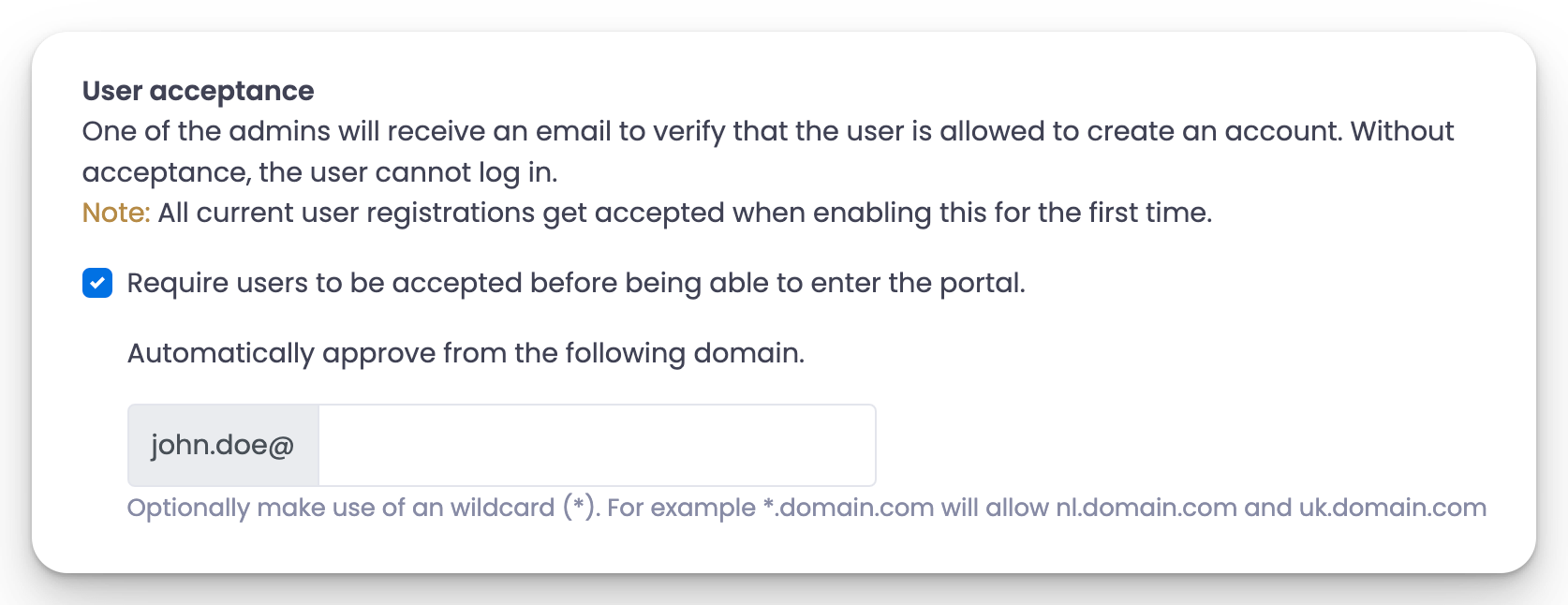
Under User Acceptance, enable New users must be approved by an admin before they can access the portal, then save that section.
Existing users are automatically approved when you enable this setting. Review existing accounts separately if you are tightening access. For the approval steps and optional email-domain rule, see Approve new users.
Give the intended people access
- Invite customers or colleagues as members when they only need to read, post or vote.
- Set up SSO if they should arrive from your own app already identified.
- Use a selected user group for a board that only some members should see.
Admin permissions are not required to participate in a private board. See limited access for colleagues.
Check both permitted and blocked access
Test with an approved member who should get in and a signed-out visitor who should not. For a group-restricted board, also test a member outside that group. Your own admin account can see more content and is not a useful test of customer restrictions.
A shared portal password is a different option: anyone who knows it can use it. Choose individual accounts when you need to control access per person.
 Powered by ProductLift